


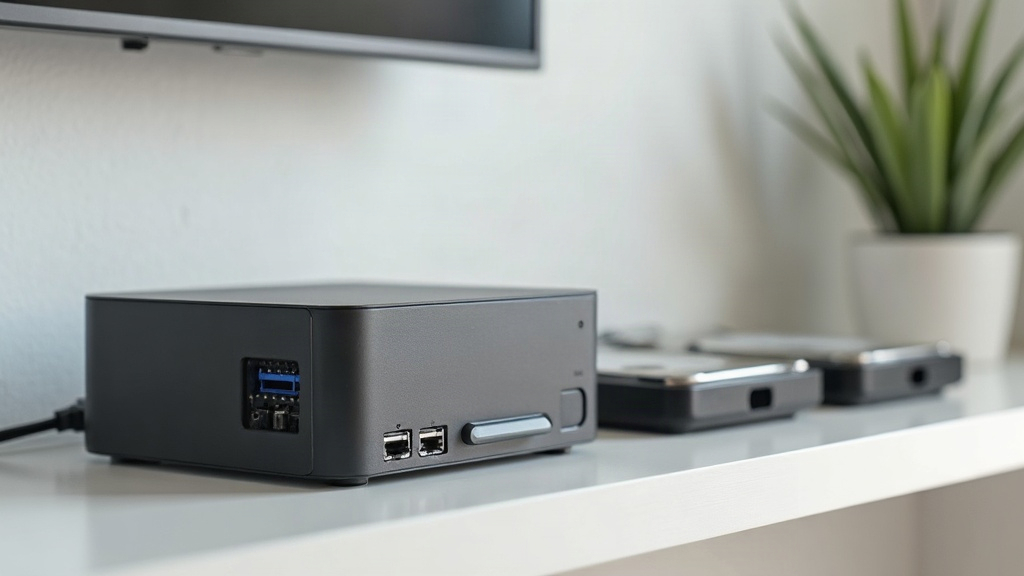
The Box in the Drawer
Somewhere in your house there is a mini-PC: the little fanless box that was going to be a second computer, or the one your office replaced. It has a low-power chip, a few gigabytes of RAM, and more storage than you will ever use on a laptop. It is also, ready to be a NAS.
A NAS (Network Attached Storage) is just a low-power computer with drives, sharing them over your network. If you have read What Is a NAS? on this site, you know the concept. What most people do not know is that you probably already own the hardware, and the power bill is not the reason to hesitate. This article is the path that does not end in a networking fight with Windows.
Why a Mini-PC Beats a Purpose-Built NAS
Prebuilt NAS boxes are fine. A four-bay model with spinning hard drives costs $400-600 and idles at roughly 25-40W - the drives alone use 4-8W each just to keep spinning, and they are the loudest thing in your home office.
Your mini-PC is a different animal. The chips in this class (Intel’s N100 and N150, AMD’s similar low-power parts) are designed for exactly this job: the N150 is a 6-watt, four-core chip that sips power at idle. With solid-state drives inside, the whole machine idles around 10-15W. Spinning drives need constant rotation and have moving parts. An SSD just sits there, using under a watt when nothing is happening.
What does that difference cost you? At typical US electricity prices (roughly 15-18 cents per kWh), a mini-PC running 16 hours a day costs about $2 a month. Running it around the clock costs about $2.50. The prebuilt NAS with spinning drives costs two to four times that, and you can likely hear it from the next room. The mini-PC is quieter than the router next to it.
The trade: a purpose-built NAS gives you easy drive bays and usually a nicer software experience out of the box. The mini-PC gives you the same job for less money and less electricity, as long as you are willing to install the software once.
Why Windows Fought You (and It Was Not Your Fault)
Most people try this with the mini-PC still running Windows, and this is where the project dies. You enable file sharing, and the other computers cannot see the machine. You try Remote Desktop, and it is not there. You spend an evening, give up, and the box goes back in the drawer.
The mechanics of why this happens:
- Windows file sharing depends on your “network profile.” If Windows decides your network is “Public” instead of “Private,” it blocks file sharing by default. Home networks routinely get misclassified, especially after a router change or a Windows update, and the setting is buried several screens deep.
- SMB version mismatches. Older devices (an old TV, a first-gen streaming stick) speak SMB1, which Windows disabled for security. Newer Windows speaks SMB3. Getting all of them talking at once means fiddling with settings Microsoft would rather you did not touch.
- Remote Desktop only exists on Windows Pro and Enterprise. If your mini-PC runs Windows Home - the edition most mini-PCs ship with - the Remote Desktop option simply is not there, no matter what you do. This catches an enormous number of people.
- Windows updates quietly reset networking settings. What worked in March stops working in June for no reason you can find.
None of this is you being bad at computers. It is Windows being a desktop operating system pretending to be a server. The fix is to stop pretending along with it: put server software on the box.
The Four Paths, Compared
You have four real options, and they differ in how much you want to pay and how much you want to run things yourself.
Path 1: Unraid - the one that just works (from about $59, one-time). This is the most popular home-server operating system among people who actually run one, and for good reason. You install it from a USB stick, point it at your drives, and get a web interface that handles file sharing, Docker apps, and - the feature that people buy it for - parity protection. That means one drive can fail and you lose nothing. It is also the one NAS operating system that happily pools mismatched drive sizes - a couple of 4TB SSDs and a spare 1TB become one 5TB protected pool, which is the situation most people actually have. It has a one-click app store with Jellyfin, Plex, Syncthing, and hundreds of others. You pay once, not per month. If you want to stop thinking about the machine and just have it work, this is the answer.
Path 2: TrueNAS Scale - the free data-protection pick. This is the serious free option, and it is excellent at one thing the others are not: it runs ZFS, which checksums every block (it detects silent data corruption instead of letting it go and get worse) and gives you instant snapshots. The trade-offs for your box: ZFS is hungry for RAM (12GB is the floor, not comfortable, once apps run alongside), it wants equal-sized drives for its redundancy layouts (a mixed collection of SSDs wastes space), and its Docker app catalog is smaller and fiddlier than Unraid’s. Pick this if you want free and maximum data protection and do not mind tuning.
Path 3: OpenMediaVault - the simplest free option. Debian Linux with a web interface bolted on, designed for exactly this job. It gives you file sharing out of the box, a Docker plugin for apps, and a web UI for management - all free. It is lighter than TrueNAS, it does not give you ZFS-level protection without extra work, but it is a perfectly good NAS for zero dollars and the least intimidating free start.
Path 4: Plain Debian + Docker - the DIY route. Install Debian, then run everything as Docker containers: Samba for file sharing, Jellyfin for media, Syncthing for sync. You own the whole stack, you learn the most, and it costs nothing but your time. This is the right choice if you enjoy the terminal and want to understand what is actually running. It is also what the other three paths are wrapping underneath.
My recommendation: if the goal is “share the media and never fight the machine again,” take Path 1 - Unraid’s parity protection is worth the one-time price for irreplaceable media. If you want free, take Path 2 if you value data protection and do not mind tuning, Path 3 if you want the simplest start. If you are comfortable in a terminal, Path 4 is genuinely satisfying and teaches you the most. All four run the same core apps below.
One more name to know: Nextcloud (and its older fork ownCloud) is the self-hosted “private Dropbox” - web file browser, sharing links, calendar and contacts sync, photo backup. It is a real product, but for the jobs on your list - media, LAN folders, Obsidian sync - Syncthing and Samba already cover them with far less weight. Nextcloud is a PHP app with a database behind it; it eats RAM and needs updates on a box already running a media server. Skip it at the start. If you later want sharing links or calendar sync, Unraid installs it as a one-click app - a 10-minute add, not a commitment.
The Apps That Do the Actual Jobs
Whatever path you pick, this is the stack you end up with, and each piece has one job:
- Jellyfin or Plex for media. Organizes your movies, TV shows, music, and books, and streams them to your TV, tablet, and phone like a personal Netflix. Jellyfin is free and open source; Plex has friendlier apps but pushes its paid tier. Your mini-PC’s built-in graphics handle video decoding, so it can transcode a 4K stream or a few 1080p streams without breaking a sweat.
- Syncthing for Obsidian and documents. This is the standard way to keep an Obsidian vault in sync across devices - free, peer-to-peer, no cloud in the middle. It also syncs any folder you point at it: documents, photos, settings.
- Samba for plain file sharing. Makes the NAS appear as a normal folder on Windows, macOS, and Linux machines - the “save it on the server, pick it up anywhere” layer. Why Samba and not NFS? SMB is the protocol Windows, macOS, phones, and smart TVs all speak natively; NFS only speaks Linux. Your TV decides this one - and Jellyfin reads the disk directly either way.
- Tailscale for access from anywhere. Free for personal use. It creates a private network between your devices over the internet, so you can reach the NAS from your phone or laptop when you are away from home - no port forwarding, no exposing it to the internet, and it replaces the Remote Desktop question entirely (you SSH in, or use a remote-desktop tool over the Tailscale network).
- Cron / scheduled tasks. Backups, downloads, maintenance - the box is happy to run a schedule. This is one reason to leave it on rather than powering it down at night.
What It Cannot Do
The N150-class chip is brilliant at serving files and streaming media. It is not a video-editing workstation. Two main limits:
- Transcoding is good, not unlimited. The built-in graphics can handle one 4K transcode or a handful of 1080p streams at once. If four people in the house all need different formats converted simultaneously, a mini-PC will choke. For a household that mostly direct-plays (which modern TVs and phones do automatically), you will rarely notice.
- Collecting mail is easy; serving mail is not. If you want to pull your existing accounts down to the NAS on a schedule and read them from any device, that is a sensible small job: a fetcher like mbsync grabs everything into a Maildir on a schedule, and a tiny local IMAP server (Dovecot) serves it to your laptop and phone. It never sends mail and has no domain, so none of the spam-reputation problems apply. What you should not do is run a mail server for your own domain - sending mail means SPF, DKIM, IP reputation, and maintenance that quietly breaks. Collect, don’t serve.
What This Means
A spare mini-PC is not a compromise NAS. It is the efficient version: less electricity than a purpose-built box, quieter than anything with spinning drives, and powerful enough for media, file sharing, and backups for a typical household. The only real cost is the one evening of setup - and if you pick the right software, that evening does not involve a networking fight with Windows.
The best part: the electricity use is so low that the old “turn it off when you are not using it” habit is pointless. Leave it on. The $2.50 a month buys you backups that run at 3am, downloads that finish while you sleep, and a server that is always there when the TV wants a movie. That is the cheapest always-on computer you will ever own.