


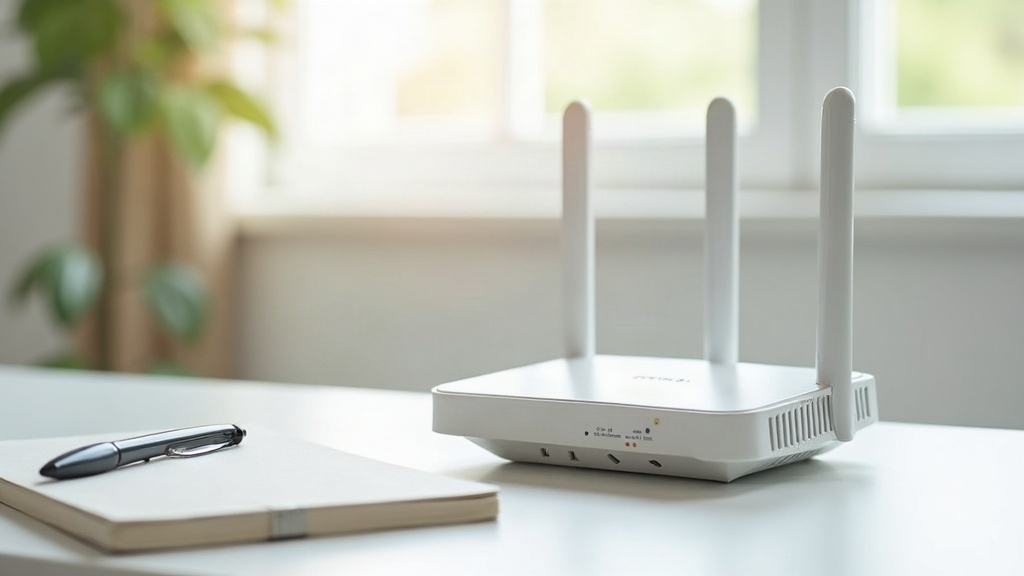
The Panic Is Normal
Your internet gets slow. You reload the page. Still slow. You reboot the router. Still slow. You start Googling new internet plans and wondering if your ISP is ripping you off.
Stop. Most slow internet problems have a simple cause and a simple fix. You just need to figure out which layer the problem is on.
Here is a diagnostic flow that works every time.
Step 1: Is It Just One Device?
Before you blame your internet plan or your ISP, check whether the problem is happening on one device or all of them.
Open a webpage or run a speed testA tool that measures your current internet speed in Mbps - try speedtest.net or fast.com for a quick check. on your phone, your laptop, and your smart TV (if it has a browser).
If only one device is slow:
- Reboot that device
- Forget and reconnect it to your Wi-Fi network
- Check if the device is low on storage (full phones slow down)
- Check for background downloads or updates
The problem is almost always the device, not your internet.
If all devices are slow: Move to Step 2.
Step 2: Is It Wi-Fi or the Actual Internet?
This is the most important test. Plug a laptop directly into your router with an Ethernet cable. If you do not have a laptop, use a desktop that is wired in.
Run a speed test on the wired device.
If the wired test is fast (close to your plan speed): The problem is your Wi-Fi, not your internet. Move to Step 3.
If the wired test is also slow: The problem is between your router and the internet. Move to Step 4.
Step 3: Fix Your Wi-Fi
If the internet is fine but Wi-Fi is slow, the culprit is usually one of these:
Old router. If your router is more than 4 years old, it is probably using Wi-Fi 5 (802.11ac) or older. A Wi-Fi 6 router handles multiple devices much better. See the Wi-Fi Generations article for what to buy.
Bad placement. Your router should be in a central location, elevated (not on the floor), and away from metal objects, fish tanks, and thick walls. A router tucked behind a TV in a corner of the house will give terrible coverage in other parts of the property.
Channel congestion. In apartments or dense neighborhoods, your Wi-Fi signal competes with dozens of others. Wi-Fi 6 handles this better, but in the meantime, try switching your router’s channelThe specific radio frequency your Wi-Fi uses. Overlapping channels from neighbors cause interference. Modern routers pick the best channel automatically, but older ones may need manual help. to a less crowded one (log in to the router admin panel and look for Wi-Fi channel settings).
Too many devices. If you have 20+ devices connected, your old router may be overwhelmed. A Wi-Fi 6 router is the fix here.
Interference. Cordless phones, baby monitors, microwave ovens, and even some Christmas lights can interfere with Wi-Fi, especially on the 2.4 GHz band. If things get slow only when the microwave is running, that is your answer.
Step 4: Fix Your Internet Connection
If the wired speed test is also slow, the problem is between your router and the internet. Try these in order:
Reboot everything. Unplug your modem AND your router. Wait 60 seconds. Plug in the modem first, wait for all lights to come back, then plug in the router. This fixes more problems than you would believe.
Check for bandwidth hogs. Someone in your house might be downloading a huge game update, streaming 4K on three screens, or running a backup to the cloud. Check all devices for active downloads or uploads.
Test at different times. If the internet is fast at 2 AM but slow at 8 PM, you have congestion on your ISP’s network that affects everyone in your neighborhood during peak hours. This is not something you can fix yourself, but knowing the pattern helps you decide what to do next.
Step 5: Decide What to Do
Once you know where the problem lives, the fix is straightforward:
| Problem | Fix |
|---|---|
| Old Wi-Fi router | Buy a Wi-Fi 6 router ($80-$200) |
| Router placed badly | Move it to a central, elevated spot |
| Too many devices | Upgrade to Wi-Fi 6 or wire the heaviest users |
| ISP congestion at peak times | Call your ISP and ask if they have a plan with higher priority, or switch providers |
| Internet plan too slow | Upgrade your plan (but test first - 100 Mbps is enough for most households) |
| Bad modem | Call your ISP to check signal levels or swap the modem |
When to Call Your ISP
Call your ISP when:
- Your wired speed test is consistently below what you pay for
- The internet drops out multiple times a day
- A technician needs to check the line into your house (signal levels, damaged cable)
Do not call your ISP when:
- Only one device is slow
- Wi-Fi works in one room but not another (that is a router placement problem)
- The internet is slow only during peak evening hours (they will tell you it is normal, and they are right)
The Single Best Fix
If you do only one thing from this guide: wire your most important device with Ethernet. A $10 cable will give you a faster, more reliable connection than any router upgrade, any Wi-Fi tweak, or any ISP call. Start there, and everything else is gravy.
Back to Home Networking section →