


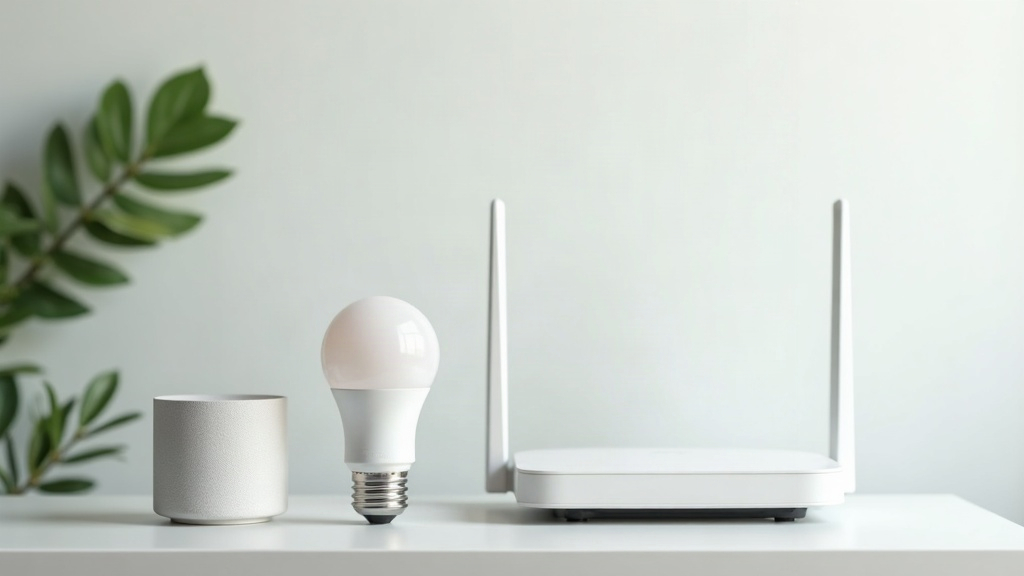
Why Your Lightbulb Should Not Be on the Same Network as Your Laptop
You bought a smart lightbulb, a smart plug, a thermostat, and a doorbell camera. Now your Wi-Fi feels worse than it did before. You are not imagining it.
Smart home devices (often called IoTInternet of Things - devices that connect to the internet to be controlled remotely, like smart bulbs, plugs, and doorbells devices) are the problem children of home networking. They work differently from phones and laptops, and they cause problems that people don’t expect.
The Problems
1. They are always on the 2.4 GHz band
Most smart home devices only work on 2.4 GHzThe older, slower Wi-Fi frequency. It travels farther and goes through walls better than 5 GHz, but is more prone to interference. Wi-Fi. This is the older, slower frequency that travels farther and goes through walls better - which is good for a doorbell that is outside or a plug that is in a cupboard.
The problem is that 2.4 GHz has fewer channelsLike lanes on a highway - separate frequency ranges that devices use to transmit data. More channels = less congestion. than 5 GHz, and those channels are shared with Bluetooth, microwaves, baby monitors, and neighbors’ networks. Every smart device you add to 2.4 GHz makes that bandA range of radio frequencies used for Wi-Fi. 2.4 GHz and 5 GHz are the two main bands. more crowded. And your phone and laptop also use 2.4 GHz when they are far from the router. So your doorbell camera is competing with your laptop for bandwidthThe maximum rate of data transfer across a network connection, measured in Mbps. Think of it as the width of a pipe - more bandwidth means more data can flow at once. on the same crowded frequency.
2. They constantly talk, even when you think they are idle
A lightbulb is not “off” when you are not using it. It is checking in with its cloud server every few minutes to see if you have sent a command. A smart plug is maintaining a constant connection to the manufacturer’s server. A doorbell camera is uploading video continuously.
Each of these little conversations takes a tiny slice of your Wi-Fi airtime. Add fifteen smart devices and you have a constant background chatter that leaves less room for your actual internet traffic.
3. They have terrible Wi-Fi hardware
Smart home devices are built to a price. Their Wi-Fi chips are usually the cheapest that meet the minimum requirements. They do not handle interference well. They drop connections and reconnect aggressively. Some of them broadcast probe requestsSignals a device sends out to ask 'is there a network I know about nearby?' Even when connected, some devices keep broadcasting these, adding to the wireless clutter. - “is there a network here?” - hundreds of times per minute, even when they are connected.
4. Some of them create their own Wi-Fi networks
Smart devices that use an app for setup (which is most of them) often create a temporary Wi-Fi network during initial configuration. If the setup goes wrong and the device does not clean up after itself, that network lingers. You now have an extra Wi-Fi network in your home, broadcasting on a channel, taking up airtime.
The Fixes
1. Keep smart devices on 2.4 GHz and everything else on 5 GHz
Set up separate Wi-Fi networks for each band (see our guide to separating your Wi-Fi bands). Connect your phone, laptop, streaming TV, and gaming console to the 5 GHz network. Connect only the smart home devices to the 2.4 GHz network.
This keeps the faster stuff on the fast lane and the chatty gadgets on the slow lane, where they cannot interfere with your actual work.
2. Use a hub instead of individual Wi-Fi connections
Some smart home ecosystems (Philips Hue, Lutron Caseta, some Zigbee and Z-Wave setups) use their own wireless protocol instead of Wi-Fi. They connect to your network through a single hub that plugs into your router via Ethernet.
This is vastly better than having fifteen individual Wi-Fi devices. The hub handles the local communication, manages updates, and presents one clean connection to your network instead of fifteen chattering ones.
If you are starting from scratch with smart home gear, choose a system that uses a hub. If you already have a bunch of Wi-Fi smart plugs and bulbs, check whether they support Thread or Matter - the newer standards that reduce Wi-Fi dependence.
3. Check whether your router can handle the load
Consumer routers are not designed for thirty simultaneous Wi-Fi connections. They are designed for a handful of phones, laptops, and streaming devices. If you have added many smart devices, your router might simply be overwhelmed.
The symptoms: devices that randomly disconnect, Wi-Fi that works fine in the morning but slows down in the evening, smart devices that need to be reset frequently.
The fix: if your router is more than three years old and you have more than about ten smart devices, it is probably time to upgrade. Look for a router that advertises “multi-user MIMOMultiple-User Multiple-Input Multiple-Output - a technology that lets a router talk to several devices at once instead of one at a time. Good for homes with many connected devices.” and “OFDMAOrthogonal Frequency-Division Multiple Access - a Wi-Fi 6 feature that lets a single channel carry data for multiple devices simultaneously. Think of it as carpool lane for your Wi-Fi.” - these are technical features that help handle many devices at once.
4. Put the problem devices on a separate network
If you have a particularly chatty device that you cannot replace (I’m looking at you, cheap Wi-Fi cameras), put it on a dedicated guest network. Some routers let you create multiple guest networks. Put the noisy devices on their own network with no access to the devices you care about. They will still work, but their chatter will be isolated.
When to Just Say No
Not every device needs to be on Wi-Fi. A smart plug that you use to turn a lamp on and off? Useful. A smart toaster? It is a toaster. It makes toast. The Wi-Fi chip in it does nothing except phone home to the manufacturer and potentially receive a firmware update that makes it worse.
The smart home industry wants you to put everything on Wi-Fi because that is how they collect data and sell subscriptions. You do not have to play along. The best smart home device is often the one that just works without an app.
Next: Wi-Fi Extenders vs Mesh vs Powerline - The Complete Comparison →