


Let’s settle this once and for all. Walk over to the box with the blinking lights that your internet company gave you. That’s the one we’re talking about. By the time you finish this page, you’ll know exactly what every box in your house does.
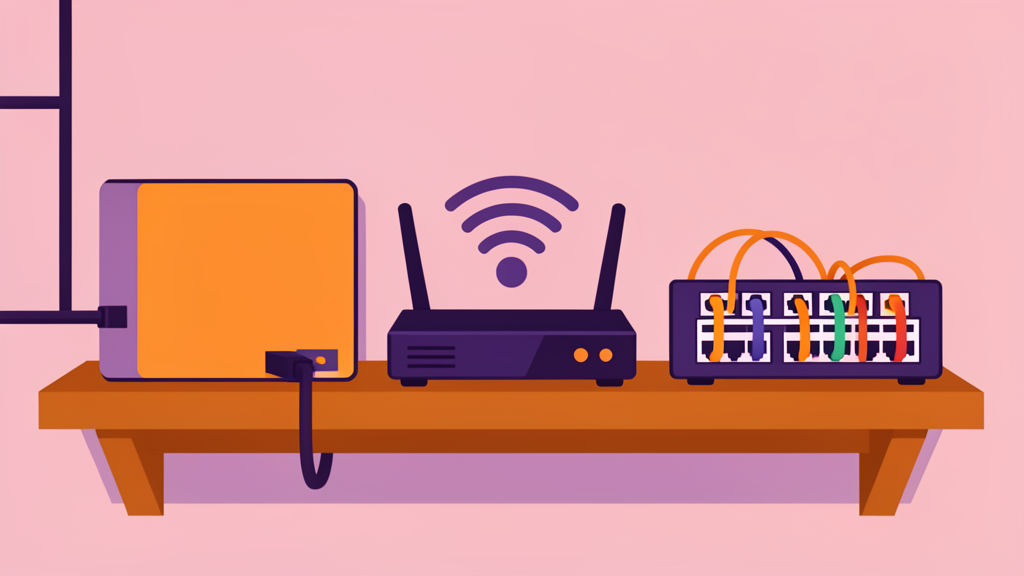
First, Find Your Box
Walk to the main box your internet company gave you. It’s the one with the most lights. That one box might be doing three jobs at once - and that’s where the confusion starts.
The three jobs are: modem, router, and switch. Sometimes they’re in one box, sometimes they’re separate. Here’s each job, plain and simple.
The Modem - Your Front Gate
The modem is the box that connects your house to the internet company. Without it, nothing works.
What it does: It takes the signal coming into your house - through a round cable (coaxial), a phone line, or a fibre optic cable - and turns it into a standard internet connection that the rest of your equipment can use.
What it looks like: A small, plain box. Usually has two lights on the front and one thick cable going into the wall. It has one port (socket) on the back. No antennas. Your internet company gave you this box.
What they call it in your country:
- Australia: This is the NBN box (or “the white box on the wall”). Telstra and Optus call it the “network termination device.”
- UK: The “Openreach modem” or just “the box BT gave you.”
- US: A “cable modem” or “fibre modem.”
- General: Some people call any box from the internet company “the modem” even when it’s actually a combined modem/router. That’s confusing but extremely common.
Simple test: If this box has no power or its lights are off, you have no internet at all. Nothing else in your house can fix that.
The Router - the Traffic Cop
The router is the brain of your home network. It takes the one internet connection from the modem and shares it with every device in your house - phone, laptop, TV, tablet, everything.
What it does: When you open a website on your phone, here’s what happens:
- Your phone asks for the website
- The router receives that request and passes it to the modem
- The modem sends it out to the internet
- The website comes back through the modem to the router
- The router makes sure it arrives at your phone - not your TV, not your laptop
Without the router, only one device in your house could use the internet at a time. And you’d have to plug it in with a cable.
What it looks like: A box with several ports on the back (sockets that look like thicker phone jacks), two or more antennas sticking up, and more lights than the modem. This is the box most people think of when they hear “Wi-Fi router.”
Most routers are actually three things in one:
- A router (directs traffic between devices and the internet)
- A switch (lets you plug in wired devices like a desktop computer or games console)
- A Wi-Fi access point (broadcasts the wireless signal)
That’s why they have antennas AND ports.
The Switch - Extra Lanes for Wired Devices
A switch is optional. Most people don’t need one. But if you have several devices that need a wired connection, it’s cheap and easy.
What it does: A switch simply gives you more ports. Your router probably has four ports on the back. If you need to plug in five or more devices with cables - a desktop computer, a games console, a smart TV, a printer - you run out of ports. A switch solves that.
What it looks like: A small, simple metal or plastic box with a row of identical ports on the front. No antennas. No complicated lights. Some are small enough to fit in your pocket.
How you use one:
- Plug one cable from your router into the switch
- Now every port on the switch works just like the ports on your router
- Plug your wired devices into the switch instead
Do you need one? Only if:
- You have a desktop computer in the same room as your router and want a faster, more reliable connection than Wi-Fi
- Your games console keeps disconnecting on Wi-Fi
- Your Wi-Fi can’t reach your home office, so you ran a cable through the wall and now need to connect more than one device in that room
- You have more wired devices than ports on your router (count them - 4 ports is typical)
What they call it: A “network switch” or just “switch.” Not to be confused with a powerline adapter (which sends internet through your electrical wiring) or a hub (an older, slower version of a switch you almost certainly don’t want).
The Common Confusion - Combo Boxes
Most internet companies give you one box that does all three jobs: modem, router, switch, and Wi-Fi access point all in one. They call it a “gateway” or “modem/router combo.”
This is fine for most people. It’s one less thing to plug in and one less thing to go wrong.
The catch: If you want better Wi-Fi, you can’t replace just the router part. You have to replace the whole box - and that usually means calling your internet company.
If your internet works fine and you’re not having problems, stick with what you have. If your Wi-Fi is slow, your video calls drop, or you lose signal in one room, come back to this page. You’ll know exactly which box to blame and what to do about it.
The Quick Reference
| Box | Job | Do you need one? | What it looks like |
|---|---|---|---|
| Modem | Connects your home to the internet | Yes - essential | Plain box, one cable to the wall, no antennas |
| Router | Shares the connection with all your devices | Yes - essential | Box with antennas and several ports |
| Switch | Adds more wired ports | Only if you run out of ports on the router | Small box, row of identical ports, no antennas |
| Wi-Fi access point | Broadcasts the wireless signal | Built into most routers. Only buy separately if your router’s Wi-Fi is weak | Similar to a router but smaller |
What to Do Now
- Find your main box (the one with the most lights)
- Check if it says “gateway” on the label - that means it’s a modem/router combo
- Count how many devices are plugged into it with cables
- Count how many ports it has on the back
If you have more devices than ports, you want a switch. If you’re happy with your internet, do nothing. If you’re not happy, you now know which box to start with.
Quick test: Next time your internet stops working, check the modem’s lights. If they’re off, it’s your internet service - call your provider. If they’re on but Wi-Fi isn’t working, it’s your router - try turning it off and on again.
Read this next: Wi-Fi 2.4 vs 5 vs 6 GHz Explained Simply - now you know the boxes, let’s talk about the invisible signals they send.
Want the full guide? We’re building a complete home networking book with checklists, buying guides, and step-by-step setup instructions.