


Hold your phone at arm’s length and squint. That is not a problem with your eyes. It is a setting, and the phone came out of the box with the wrong one.
Phone makers set the text small because small text looks tidy in a shop. Once you own the thing, tidy stops mattering and readable starts mattering. The setting that changes it has been there the whole time, about four taps deep.
This guide fixes it. Every menu path below was taken from a real phone, not from a manual, and the screenshots are that same phone.
What “the text is too small” actually means
There are two different things on a phone that people describe with the same words, and they are separate settings.
- Font size changes how big the letters are. The text gets bigger and it takes up more room, so less fits on the screen. This is the one you want first.
- Screen zoom changes how big everything is, including buttons, icons and menus. It makes the whole interface larger rather than the words alone.
Most people only ever need the first one. If you have already made the text as large as it goes and you still cannot read it comfortably, screen zoom is the second lever, and I will show you where it is.
Step one: the font size slider
Open Settings, then tap Display.
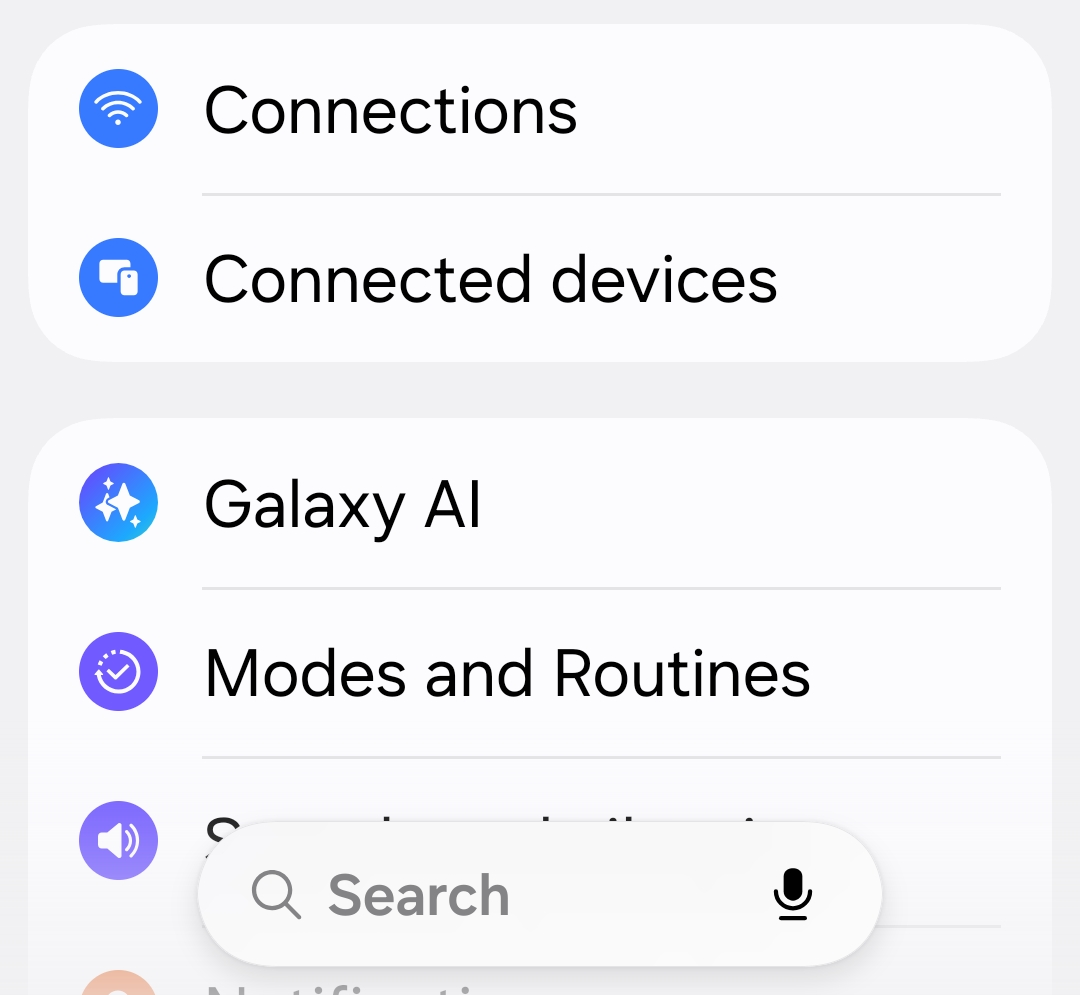
Display may be further down the list than you expect. On the phone used for these screenshots it sits below Notifications, in the second group of items.
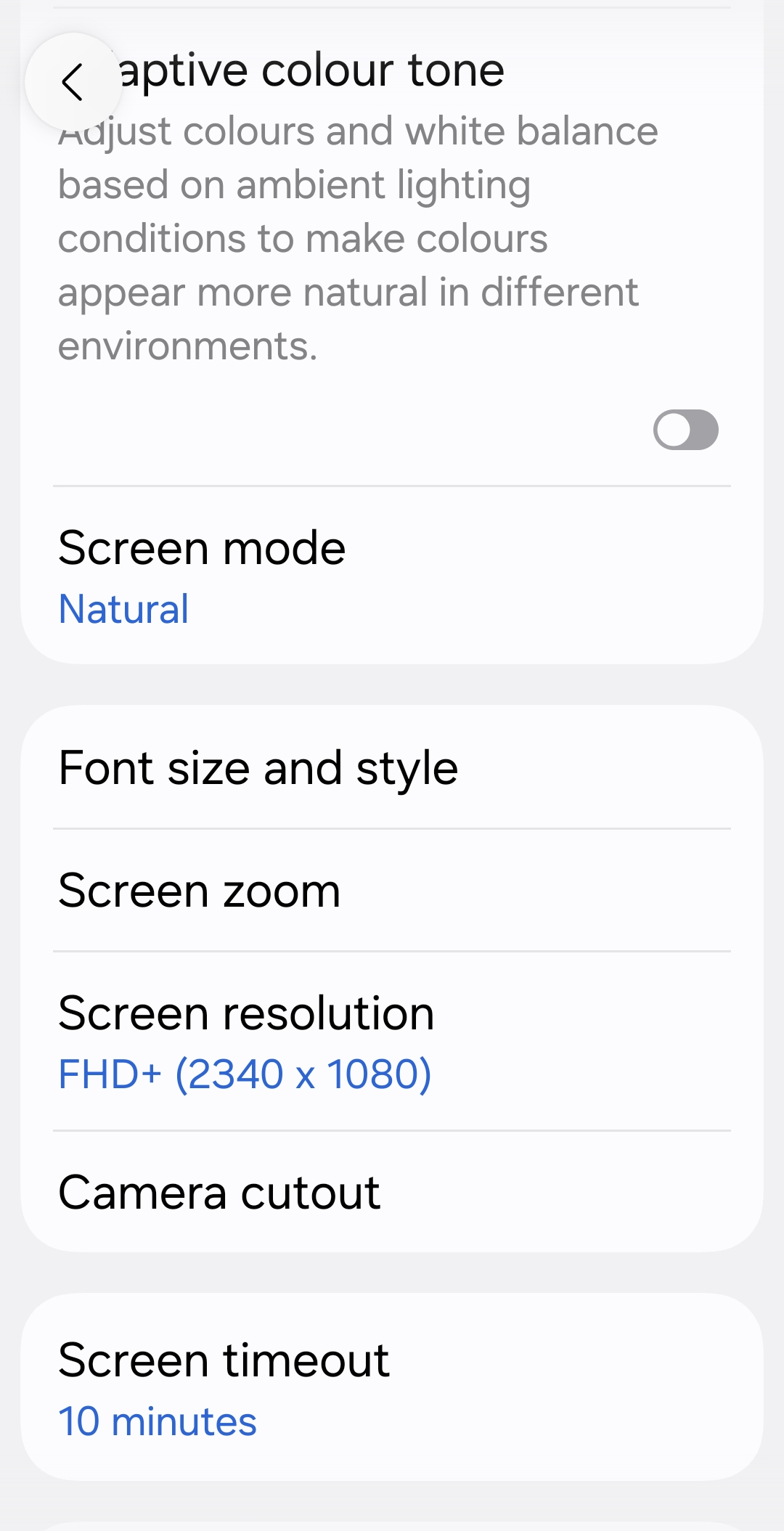
Once you are in Display, tap Font size and style.
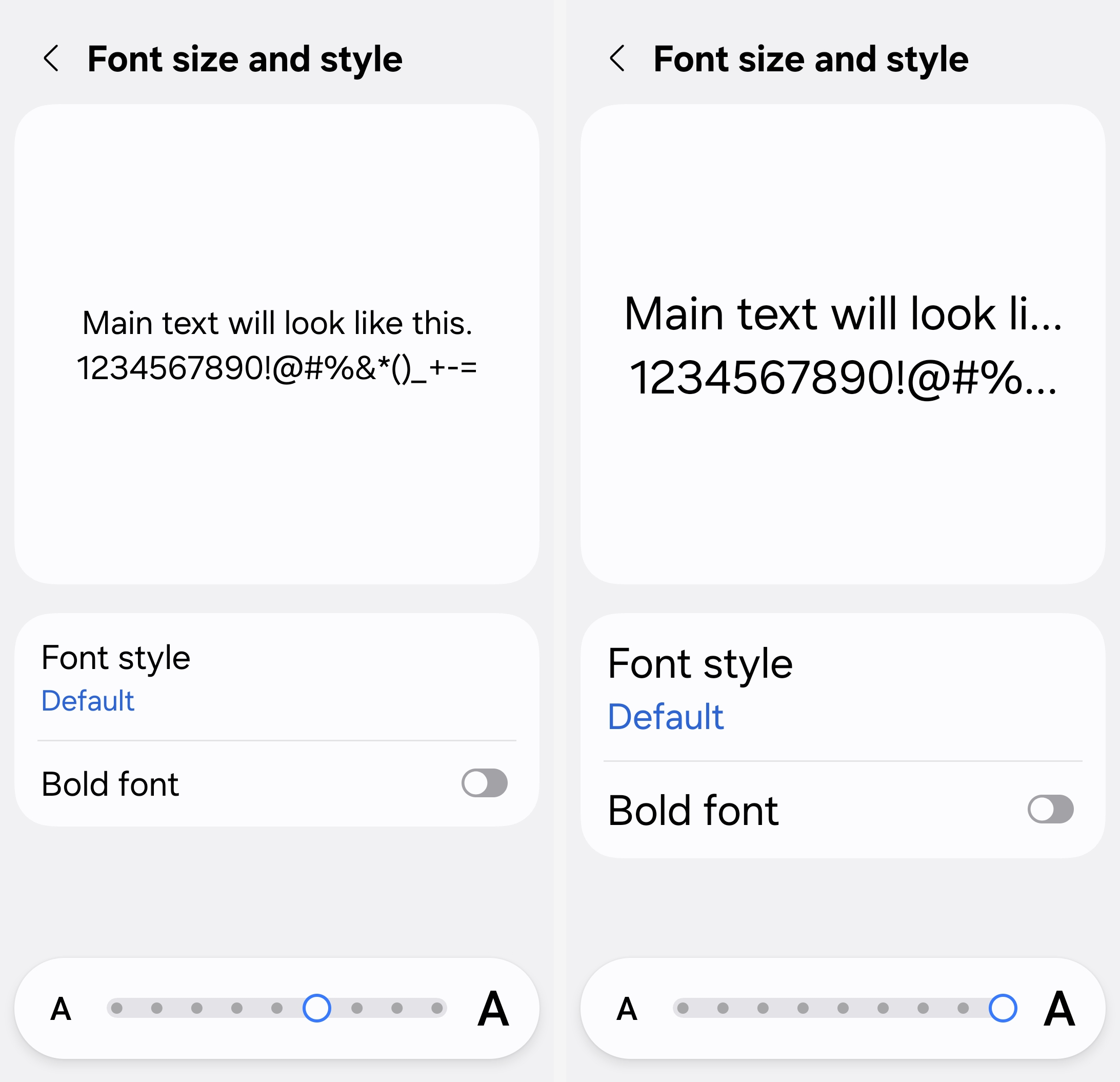
Now you will see a row of letters with a slider underneath: a small A on the left, a large A on the right, and a preview of sample text above.
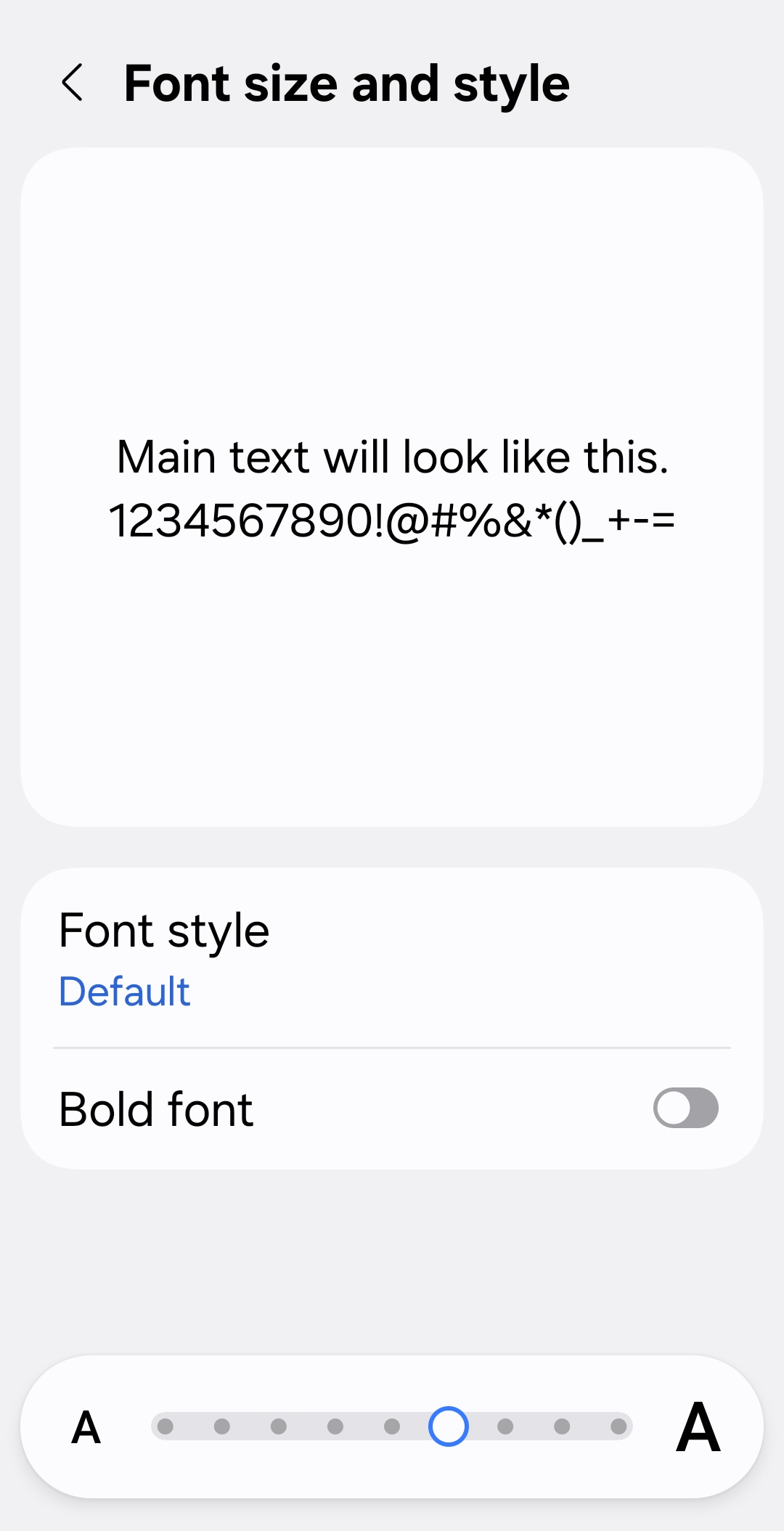
Drag the dot toward the large A. The sample text above changes as you drag, so you can see the result before you commit to it. There is no wrong answer here and nothing breaks. If you overshoot, drag it back.
Here is the same screen before and after, at two different slider positions:
Step two: the second lever, if you need it
Still on the Display screen, below the font setting, there is Screen zoom.
This one enlarges everything: the icons, the buttons, the menus, the keyboard. It is the right answer when the text is fine but the things you have to tap are still too small, or too close together.
Every toggle and control in a menu gets bigger, and you scroll more to see the same page. That is the trade. It is worth it if tapping the wrong thing has become a habit.
Step three: bold text
Go back into Font size and style and look below the slider. There is a switch marked Bold font.
Turn it on. Bold text is thicker, and thicker strokes are easier to read at a distance and in bright light, which is where phone reading usually goes wrong.
You may not like how it looks in the first minute. Give it an afternoon. Most people who try it keep it.
Step four: stop the screen going dark while you read
This is the one nobody thinks to change, and it is the one that causes the most frustration.
Your phone locks itself after a set time with no taps. If that time is 30 seconds and you read slowly, the screen goes black in the middle of a paragraph, every time. Then you unlock it, find your place, and it happens again.
On the Display screen, look for Screen timeout and set it to something generous. Two to five minutes is a reasonable choice. It costs you a little battery and saves you a great deal of annoyance.
What to do now
- Open Settings, then Display. Find it once and you will never hunt for it again.
- Tap Font size and style, and drag the slider toward the large A. Do this today, while you are reading.
- Turn on Bold font on the same screen.
- Set Screen timeout to two minutes or more.
- Come back to Screen zoom only if you still need it. Most people do not.
If your phone is not a Samsung
The paths above were checked on a Samsung Galaxy S25 Ultra running Android 16 with One UI 8.5.
Samsung calls its version of Android One UI, and it moves some settings around. On a Google Pixel or a Motorola, the font setting is usually found under Settings, then Accessibility, then Display size and text instead of under Display. The setting exists on every Android phone; the route to it differs.
If you cannot find it, open Settings and use the search box at the very top of the screen. Type font size. Your phone will take you straight there, which works on every Android phone regardless of brand.
Want more guides like this as they are written? Sign up for the free tips list.