


Your phone holds your email, your bank, your messages and ten years of photographs. Most people protect all of that with a four-digit code, or with a swipe, and have never opened the settings that would change it.
Four settings fix the worst of it, and they take about ten minutes. None of them requires an app, an account you do not already have, or any understanding of how any of it works. They are: a real screen lock, a SIM PIN, remote lock and wipe, and the permission screen.
Why the lock screen is the whole ballgame
A phone without a real lock is not a phone with a privacy problem. It is an unlocked front door to your whole life, and the reason is your email.
Almost every account you own can be reset by email. Your bank, your shopping, your utilities, your photos, everything that has a “forgot password” link. Whoever holds your unlocked phone holds your email, and whoever holds your email can reset the rest, one account at a time, at leisure.
That is why the lock screen matters more than any other setting on the device. It is not about somebody reading your messages. It is about somebody owning your accounts.
What to change
A four-digit PIN gives 10,000 possible codes. A six-digit PIN gives a million. That is the reason for the extra two digits, and it takes about twenty seconds to make the change.
The phone also slows down repeated wrong guesses, so the realistic attack is not a machine working through a million codes. It is somebody watching you type it, or somebody who knows your birthday. Six digits does not fix the first problem. It makes the second one much harder.
Set the PIN, then add your fingerprint or your face as well. The biometric is what you will actually use forty times a day, which means the PIN stays strong instead of being shortened to something you can be bothered to type.
Where it is
The screen is called Screen lock and biometrics, and it lists every lock type together with how strong the phone thinks it is: PIN (medium-high security), Password (high), Pattern (medium), Swipe and None (no security). Your current choice carries a green tick.
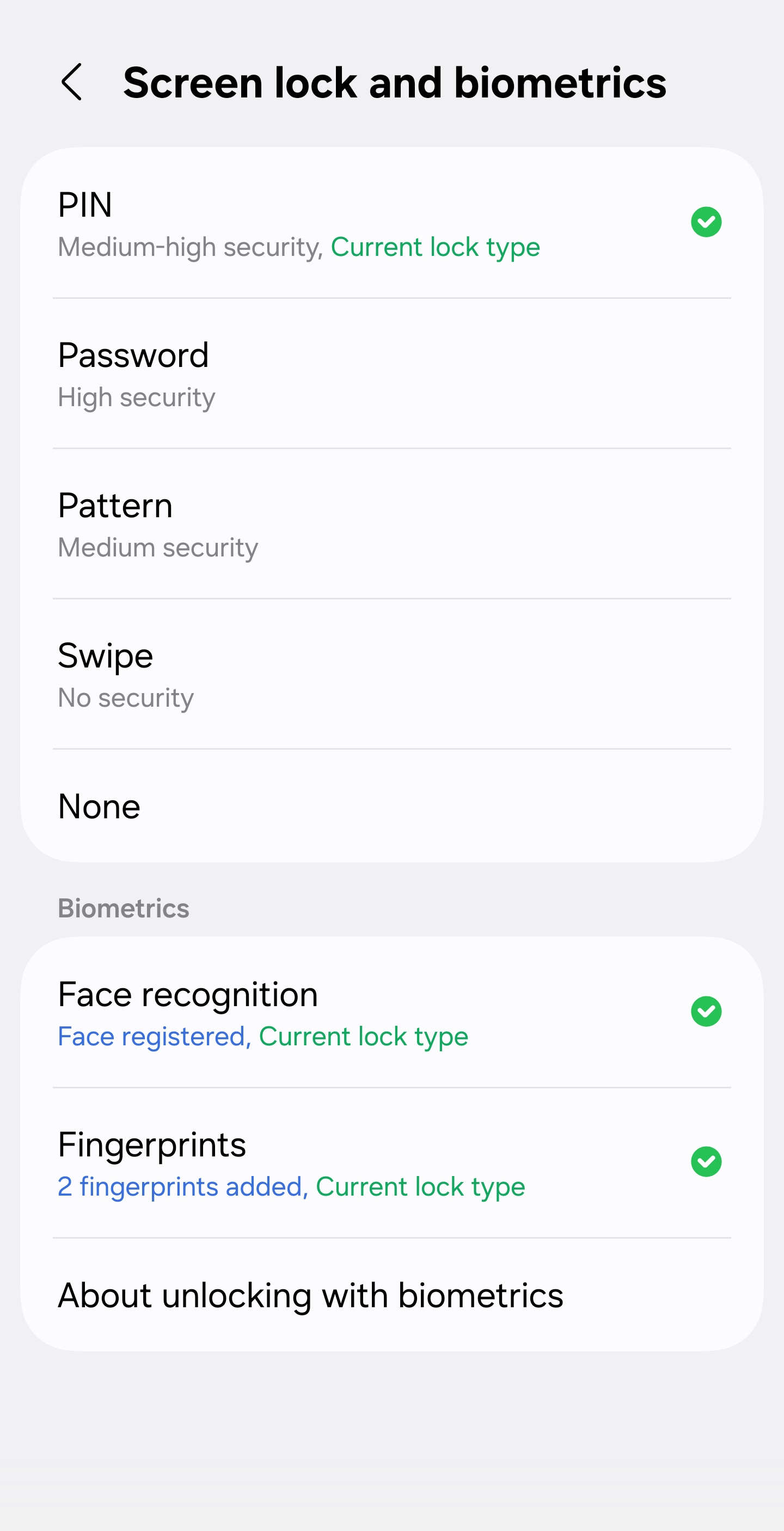
Choose PIN, enter six digits, and confirm. Then look further down the same screen: under Biometrics, Face recognition and Fingerprints each show whether they are registered and how many fingerprints are stored. Register one, so you are not typing those six digits every time you pick the phone up.
Getting there: open Settings, tap the search box at the top, and type screen lock. That route works on every Android phone and survives every software update, which the menus do not.
The SIM PIN, which almost nobody turns on
Your SIM card is a small computer with your phone number on it, and by default it has no PIN at all.
That means a thief can take the SIM out of your locked phone, put it in another handset, and receive your calls and your text messages. Every one-time code your bank sends by text goes to that SIM. So does every password reset that confirms by text. The strongest lock screen on the market does not help you if the number walks out of the phone.
Turning on the SIM PIN puts a code on the card itself. The card then refuses to work in any device until the code is entered.
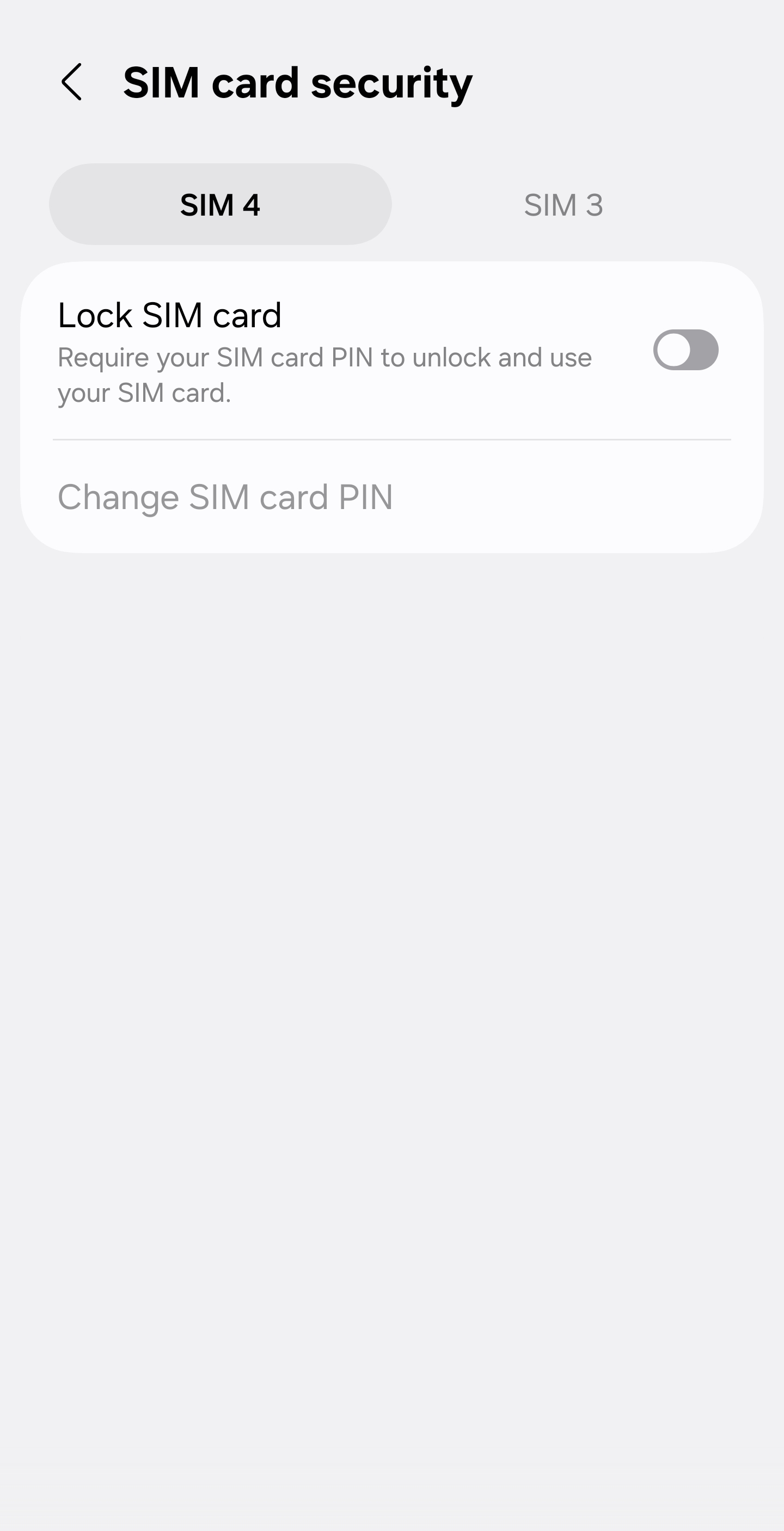
- The screen is called SIM card security. It has one switch, Lock SIM card, which is off by default, and a Change SIM card PIN row that only becomes available once the switch is on.
- If your phone holds two SIMs, you set this for each one. The screen shows a tab for every SIM in the phone, and the switch applies to the tab you are looking at.
- What you will need: the default SIM PIN from your mobile provider. It is often 0000 or 1234, and it is worth ringing them if you are not sure, because you get three tries.
- The cost of getting it wrong: three wrong entries lock the SIM, and you then need the PUK code from your provider to unlock it. So get the PUK before you start. It is on the plastic card the SIM came in, and your provider will give it to you over the phone.
Find it, lock it, wipe it - from another device
This is the setting you cannot turn on after you need it, which is exactly why it belongs in the ten minutes you spend now.
Every Android phone can be located, locked and erased remotely, as long as three things are true before the phone goes missing: it is signed in to your account, it is switched on, and remote controls are enabled. The first two you have. The third is this setting.
On a Samsung phone the screen is Lost device protection, and what you are looking for is the Find My Mobile row reading “This phone is allowed to be found when lost” with a green tick beside it. If that line is missing, or the tick is not there, that is the thing to fix before anything else on this list.
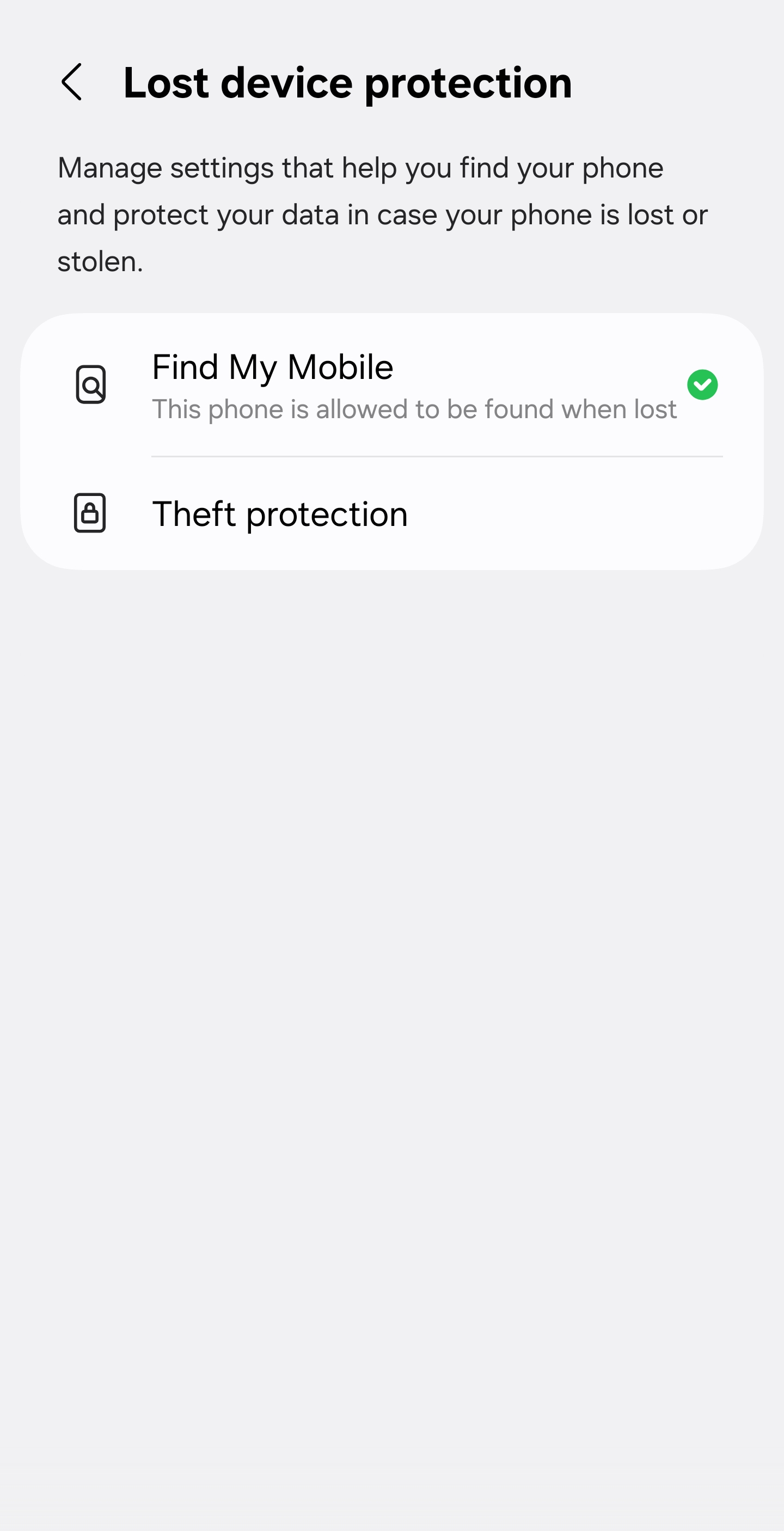
Below it sits Theft protection, which covers what the phone does when somebody tries to reset it or take it away from where it belongs. Open it once and read what is switched on. It is the part that stops a stolen phone from being turned around and sold.
Then sign in to smartthingsfind.samsung.com from any browser, on any computer, and you will see the phone on a map. From there you can make it ring, lock it with a message on the screen, or erase it. Do that once now, while the phone is in your hand.
- Remote lock is the one to reach for first. It locks the phone and shows a message with a phone number on the screen, so whoever finds it can ring you. It buys you time and it costs you nothing.
- Remote erase is the last resort. It wipes the phone, and on a modern device it also leaves it unusable without your account, which is the part that makes stealing it pointless.
Two things worth knowing before you need them. A phone that is switched off reports its last known location, not its current one, so do not expect a live dot if the thief has powered it down. And if the phone has been stolen, do not go to the location on the map. Give the address to the police and let them go.
The settings that make the other three work
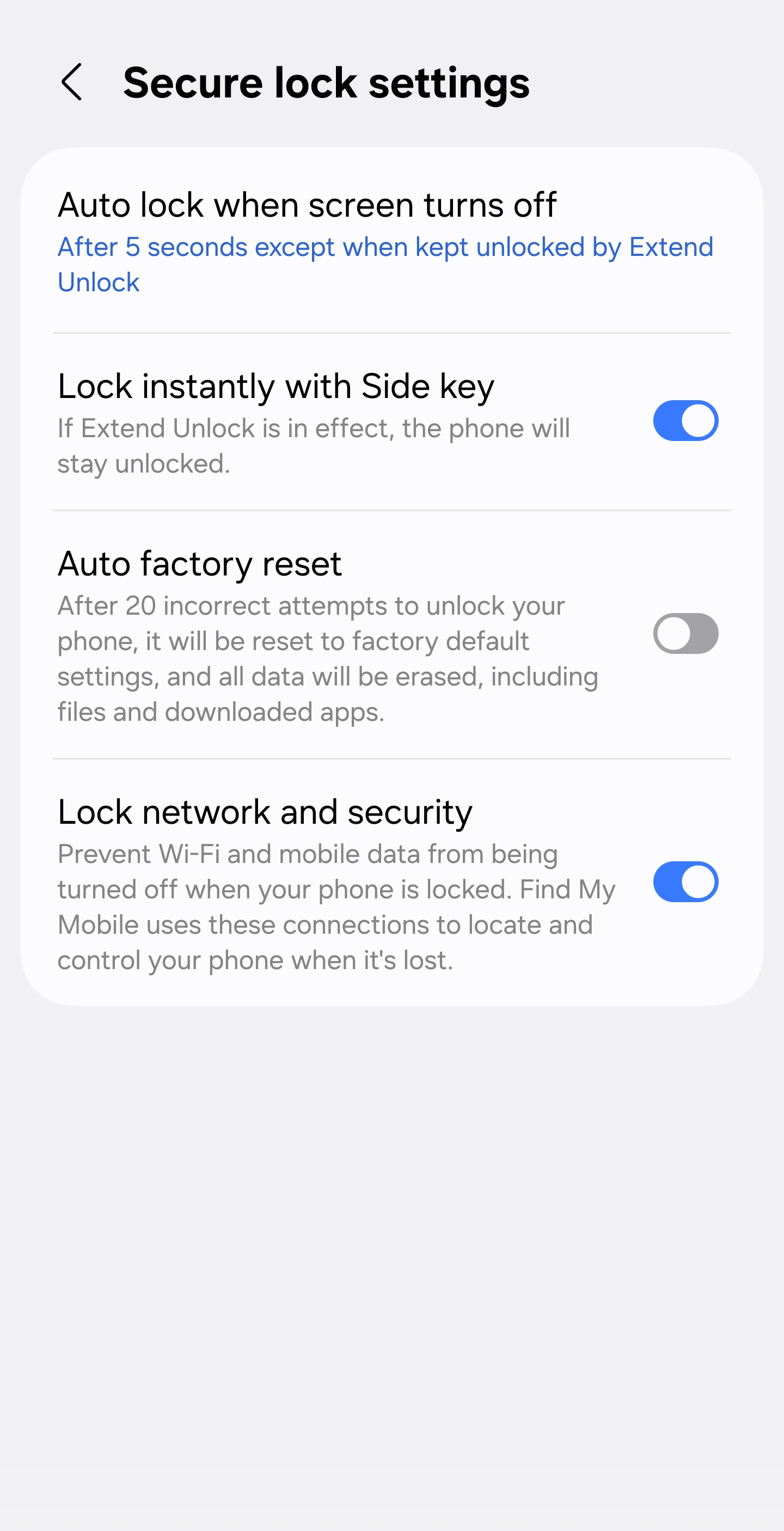
There is a screen called Secure lock settings, and its rows decide whether the protections above actually apply.
- Auto lock when screen turns off. On the phone this was written on it reads “After 5 seconds except when kept unlocked by Extend Unlock”. Five seconds is a reasonable compromise: long enough not to lock while you are reading a page, short enough that a phone taken from your hand is locked by the time it reaches a pocket.
- Lock instantly with Side key. Switch this on. A press of the side button then locks the phone immediately, whatever the timer says, which gives you an override you can use while somebody is asking you for the time.
- Auto factory reset. Twenty failed unlock attempts and the phone erases itself. This is off by default. It is the setting that makes a stolen phone worthless to a thief who guesses, and it is also the setting that will erase your data if a child plays with the phone. Decide deliberately rather than leaving it where it is.
- Lock network and security. Switch this on. It keeps Wi-Fi and mobile data available while the phone is locked, which is exactly what the remote find needs in order to reach a phone sitting in somebody else’s bag.
The permission screen: what you already agreed to
Every app you have installed has been asking you for things, and most of us tapped “allow” without reading, usually while standing in a queue.
That is not a moral failing. It is how the prompts are designed. But the result is worth five minutes, because the list tells you what each app can actually reach.
The screen is Permission manager, and it is more readable than you would expect. Each row is a permission, and under it the phone counts how many apps have it: Location, 45 of 109 apps allowed on the phone this was written on, Microphone, 23 of 108, Camera, 35 of 117.
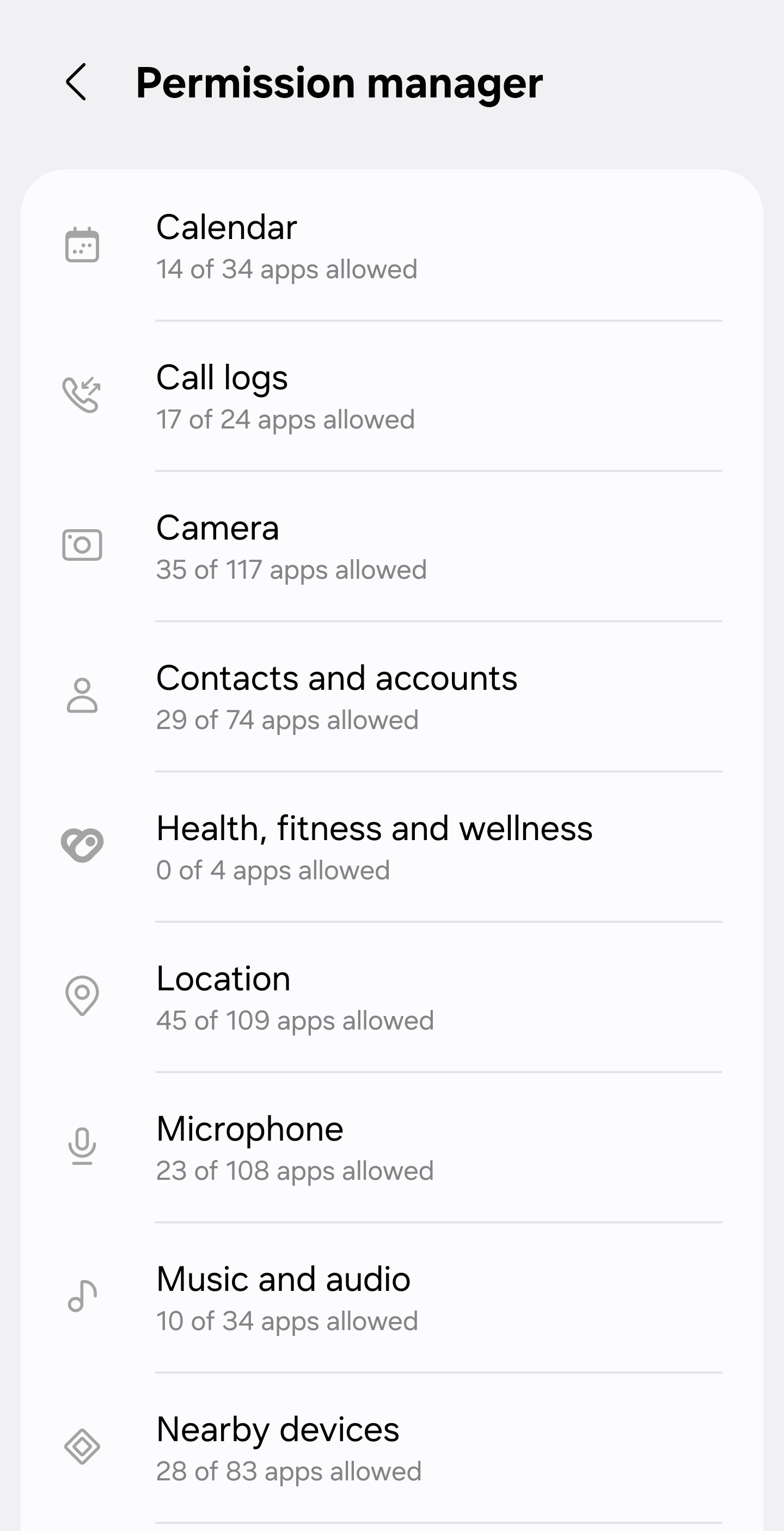
Open Location and you get the apps, one at a time, each with four choices:
- Allow all the time
- Allow only while using the app
- Ask every time
- Don’t allow
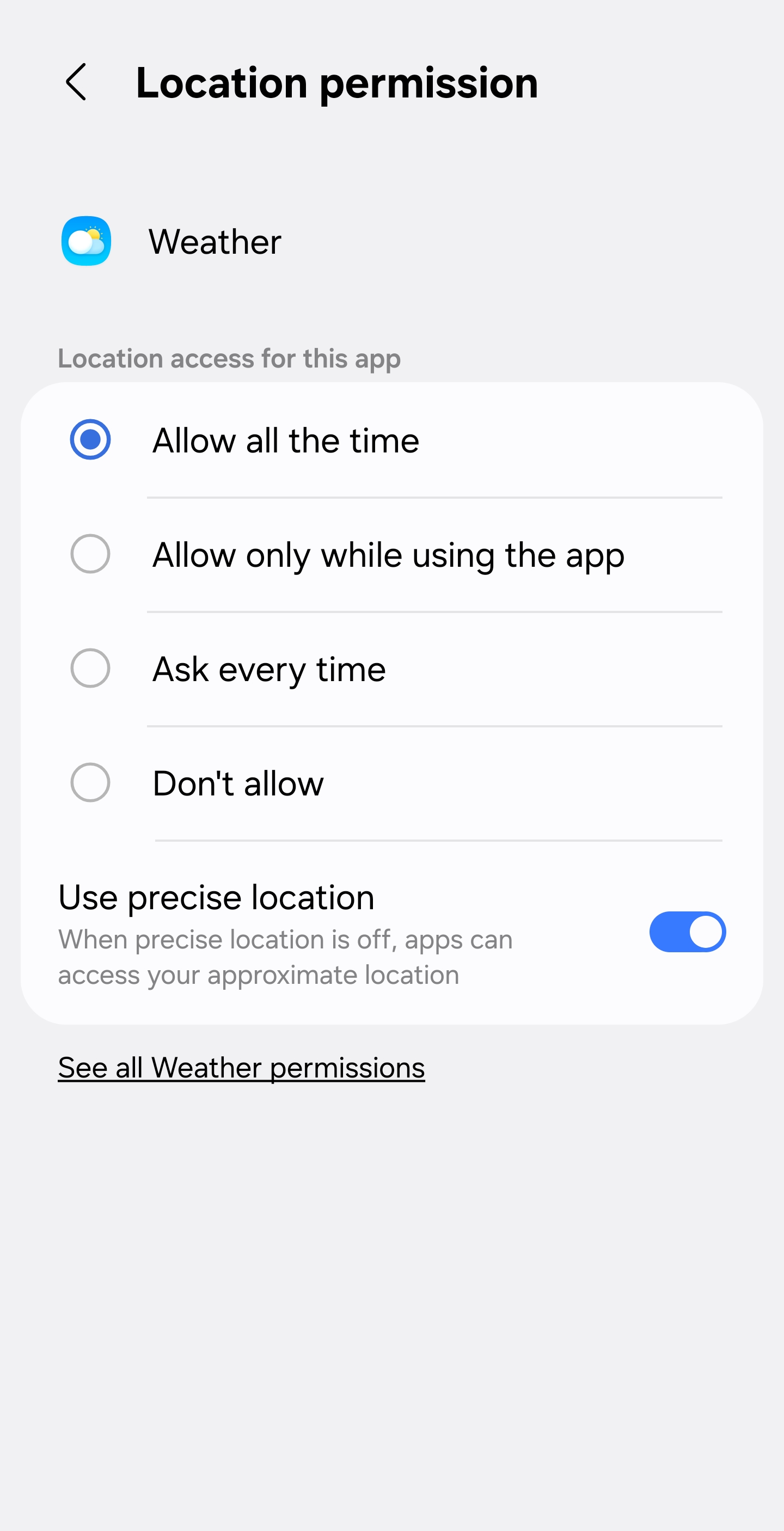
The phone this article was written on had a weather app set to Allow all the time, with Use precise location switched on. A weather app needs to know roughly where you are while you are looking at the forecast. It does not need to know exactly where you are at three in the morning, and it does not need to know at all when you are not using it.
- What to look for: anything set to Allow all the time that has no business knowing where you are when you are not using it.
- The fix: change it to Allow only while using the app, or Don’t allow. Nothing breaks. The app asks again next time it needs it, which is the correct behavior.
- Turn off Use precise location for anything that only needs your town. The app still works, and it stops knowing which building you are in.
- The same list has Microphone, Camera, Contacts, Files and Photos. An app with your microphone and no obvious reason for it is the one worth a second look.
What to do now
- Set a six-digit PIN. Settings, search for screen lock, open Screen lock and biometrics, choose PIN, then register a fingerprint or your face below it.
- Fix the lock timer. Open Secure lock settings, switch on Lock instantly with Side key, and decide deliberately about Auto factory reset.
- Ring your provider and get your PUK, then open SIM card security and switch on Lock SIM card. Write both down somewhere that is not the phone.
- Check Lost device protection. The Find My Mobile row should say the phone is allowed to be found, with a green tick. Then sign in to the find website once from a computer so you know it works before you need it.
- Open Permission manager and fix Location. Start with anything set to “Allow all the time” and work down.
If your phone is not a Samsung
The four settings exist on every Android phone. Only the route to them changes.
On a Google Pixel, Motorola or most other Android phones, the equivalents are Settings, then Security, then Screen lock for the first, the SIM lock screen for the second, Find My Device for the third, and Settings, then Apps, then an app, then Permissions for the fourth.
The universal method works on all of them: open Settings, tap the search box at the top, and type screen lock, SIM, find my device, or permissions. The search box is maintained by the phone and it knows where things have moved.
If you use an iPhone, the equivalents are Face ID and Passcode for the lock, SIM PIN under Mobile Service, Find My for the remote lock and erase, and Privacy and Security, then Location Services, for the permissions.
The screens above were checked on a Samsung Galaxy S25 Ultra running Android 16 with One UI 8.5.
Want more guides like this as they are written? Sign up for the free tips list.