


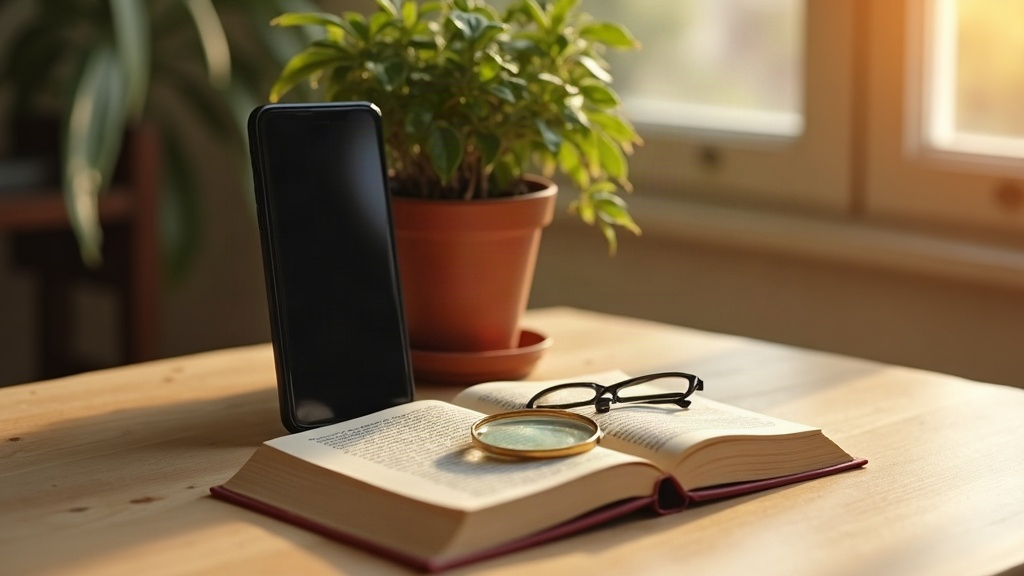
Some things are still too small even after you have made the text and the buttons bigger: the small gray writing under a menu row, the terms buried in a form you have to agree to, the account number in a banking app.
Magnification is different from both of those settings. Font size and screen zoom change your phone permanently, so everything everywhere is larger. Magnification gives you a window that follows your finger, only when you need it, and it goes away when you are done.
What magnification actually is
Imagine a magnifying glass held over part of the screen. Everything inside the circle is bigger, everything outside it is normal size, and you can push the glass around to examine any part of the page.
That is exactly what this does. A rectangle appears over part of your screen with the content enlarged inside it, at the position you tapped. You drag a finger to move it. It stays until you turn it off.
This is worth having separate from the other two settings because you do not always want everything big. Bigger text everywhere means scrolling more, everywhere. Magnification is for the ten seconds when something is unreadable, and it’s invisible the rest of the time.
It magnifies the screen, not the room
The name invites one mistake, so it is worth saying outright: this enlarges what is drawn on your phone’s display. It cannot enlarge a menu across a restaurant table, and it cannot enlarge the small print on a bottle in your hand. If the thing is not on the screen, there is nothing for it to enlarge.
For those, take a photograph first, then open the photograph and use the three taps on it. The camera does the reaching for you, and you magnify the result.
Samsung also ships a separate camera tool, Magnifier, in the same Vision enhancements list, one row below Magnification. That one turns the rear camera into a live magnifying glass and shows an enlarged view of whatever it is pointed at. For a medicine label or a menu in a dim room it is the right tool, and it is worth knowing the two are different things with confusingly similar names.
Where it is
Open Settings, then Accessibility.
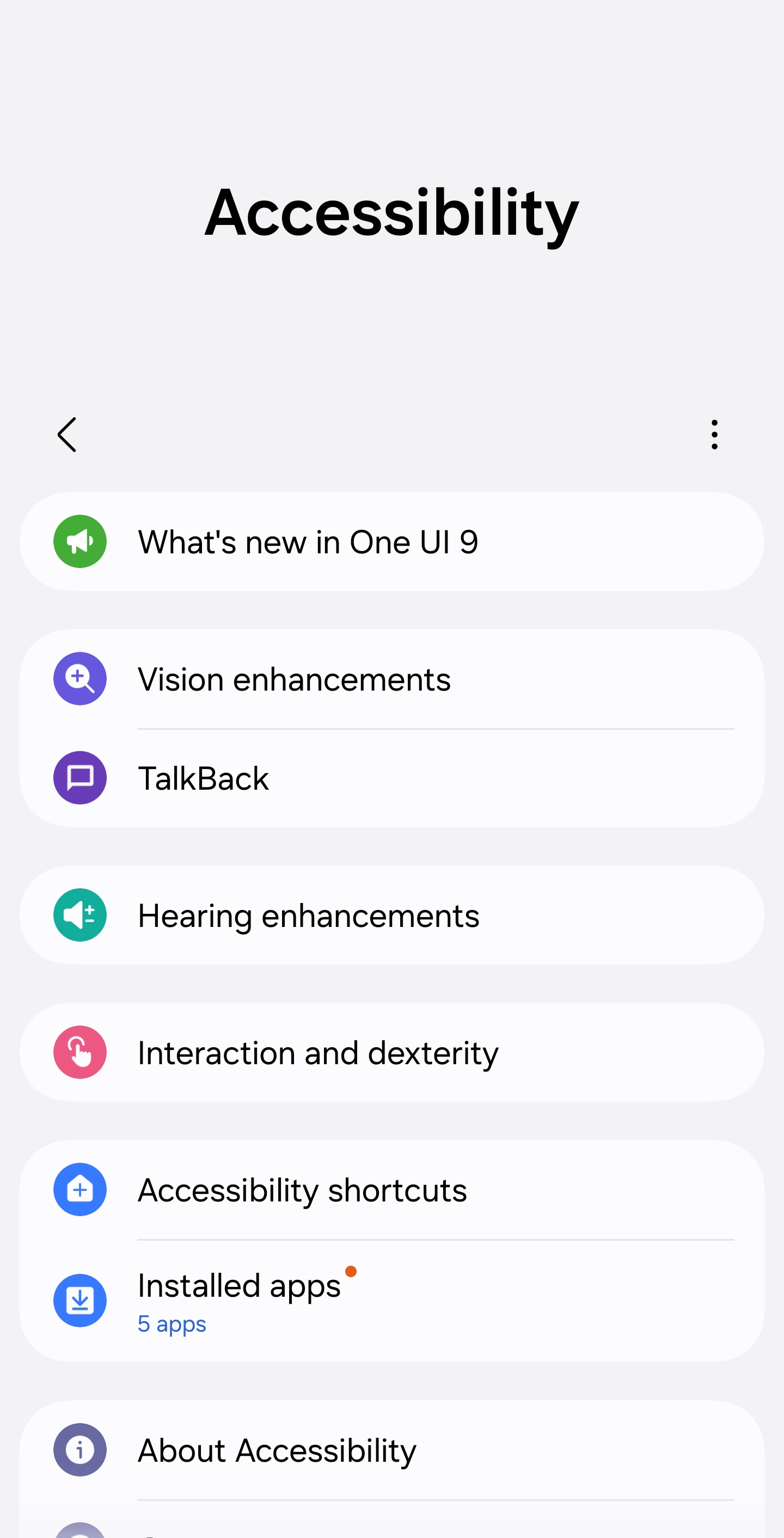
What’s new in One UI 9 sits at the top. Ignore it. Vision enhancements is the first real entry, and it is where everything to do with seeing the screen clearly lives.
Tap Vision enhancements, then scroll down to the section headed Size and zoom.
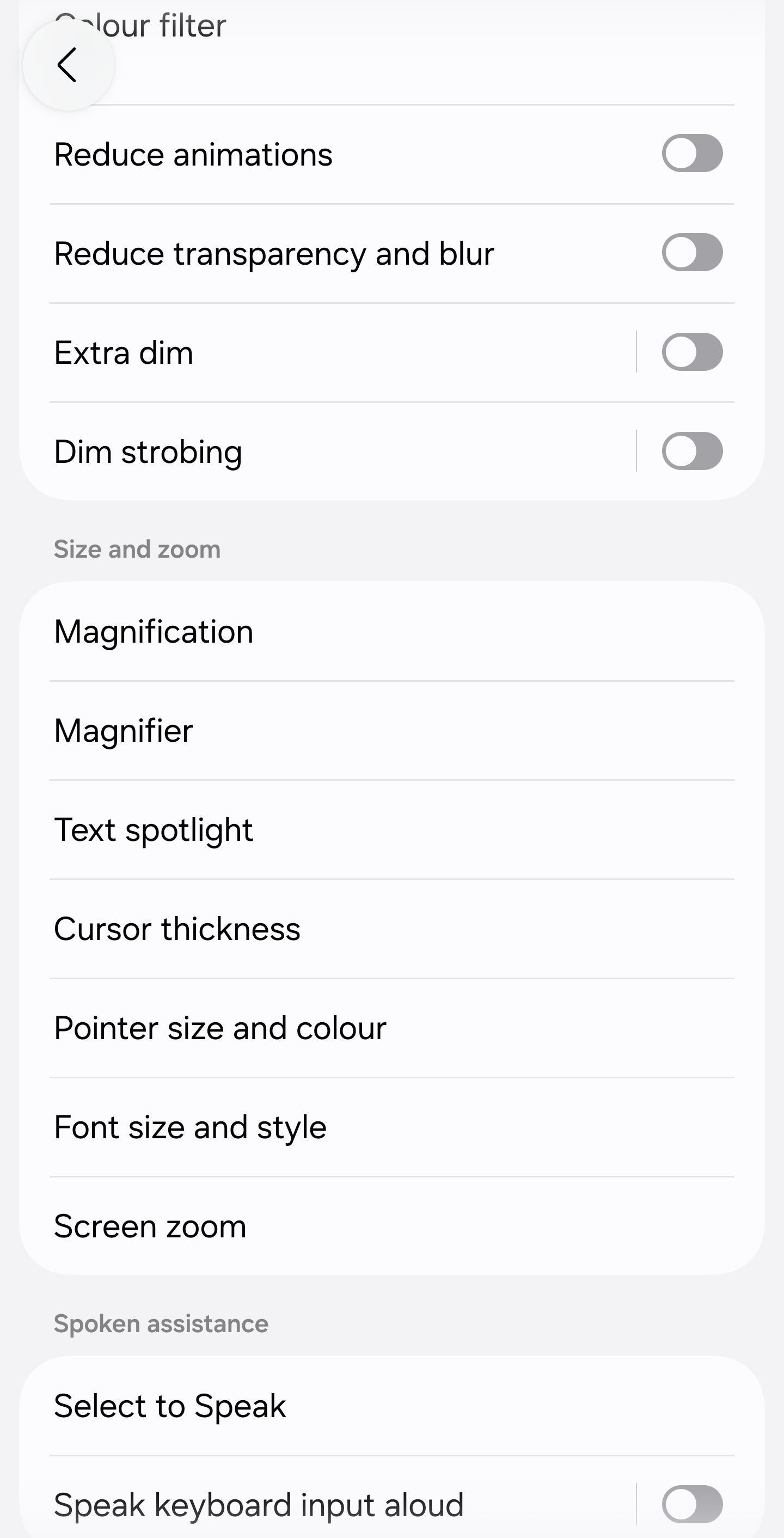
Magnification is the first row in that group. Behind it sit the other things you may have used already: Magnifier, Text spotlight, and Screen zoom, which has its own guide.
Turn it on
Tap Magnification and you get a screen with a switch marked Magnification shortcut.
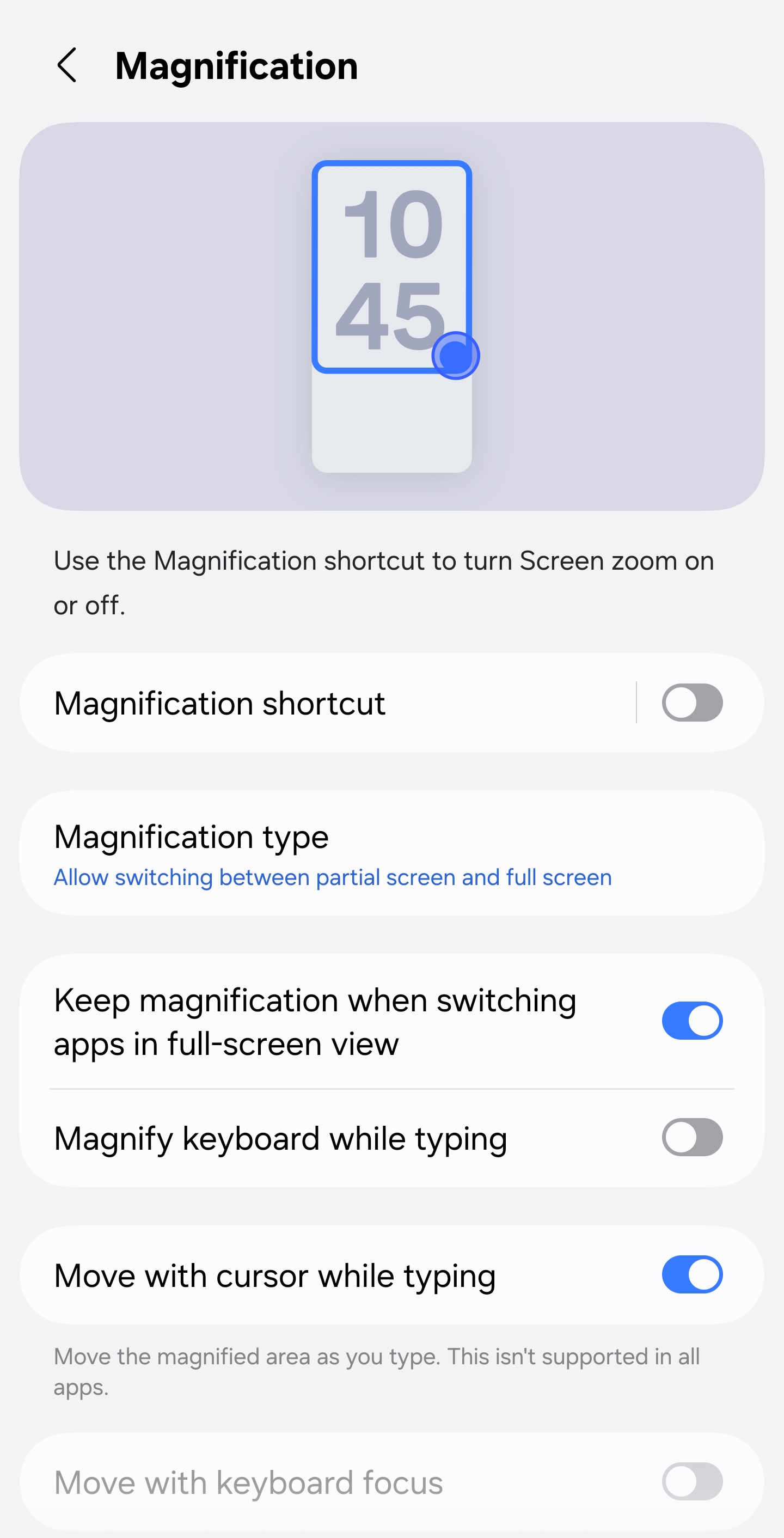
That switch is the on and off for the whole feature. With it off, nothing below matters and nothing happens when you tap. Turn it on. In the picture it is still off, which is how your phone arrives.
The rows underneath are refinements, and you can leave all of them alone at first. Magnification type lets you switch between a partial window and the whole screen. Magnify keyboard while typing is off by default and should stay off unless you want the keyboard to grow whenever you type.
Choose your three taps
Tap Magnification shortcut itself, the row with the switch, and you get the list of ways to start it.
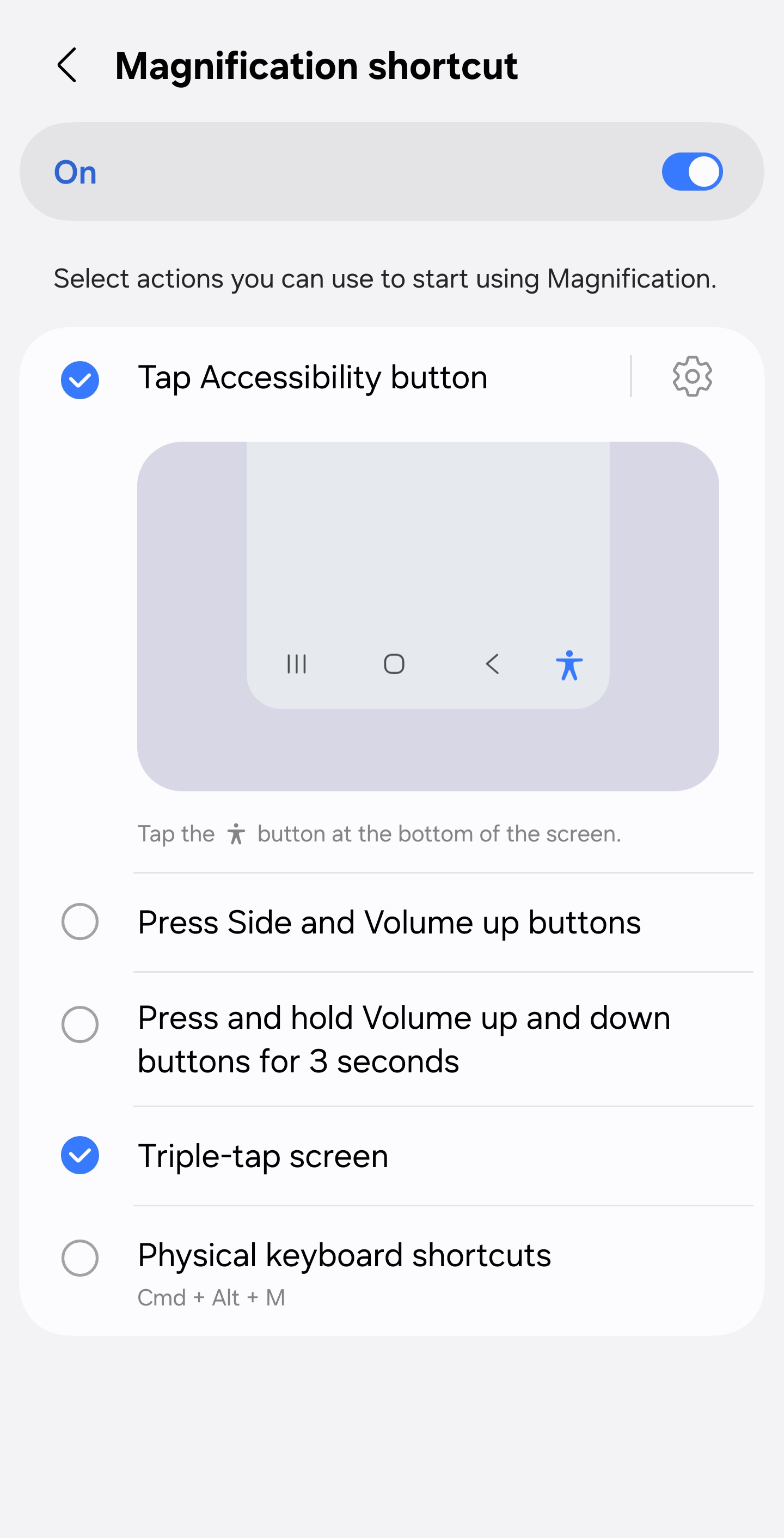
There are four choices:
- Tap Accessibility button. A small button appears at the bottom corner of the screen, next to the navigation bar, and you tap it. This is what Samsung selects by default.
- Press Side and Volume up buttons. Both side buttons together.
- Press and hold Volume up and down buttons for 3 seconds. Useful if reaching two buttons at once is easier than tapping three times.
- Triple-tap screen. Tap anywhere on the screen three times in quick succession.
Pick Triple-tap screen unless you have a reason not to. The accessibility button works, but it occupies a corner of every screen, permanently, and it is easy to catch by accident. Three taps leaves no mark on the screen at all.
Using it
Find something too small to read. Tap the screen three times.
A window appears over the part of the screen, with a blue border and a small gear in one corner, and everything inside it is enlarged.
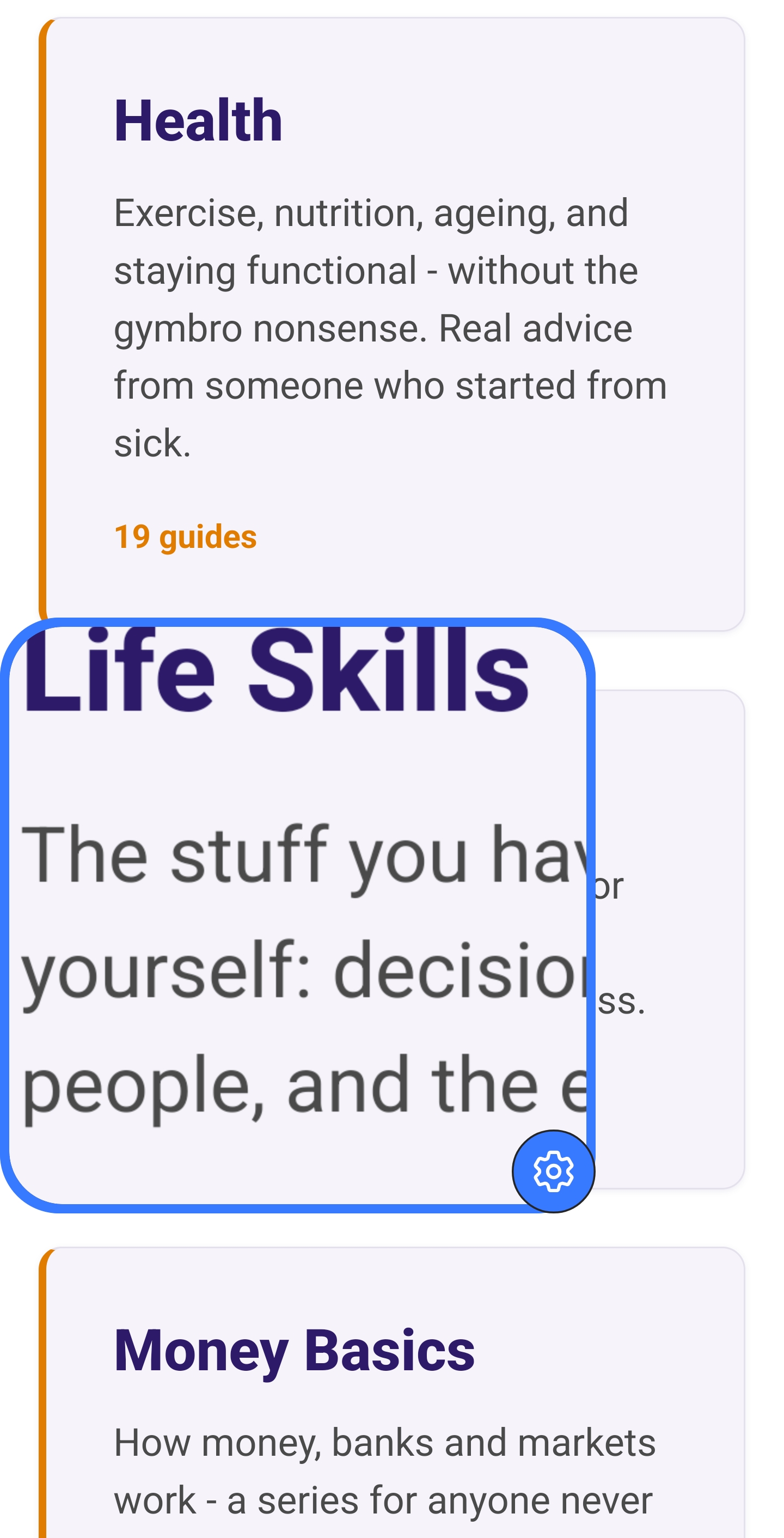
Put one finger inside the rectangle and drag. The window moves, and whatever is underneath it is what gets enlarged. That is the whole technique: tap three times to open it, drag until what you want is inside it, and tap three times to close it again.
If the window will not move, drag its gear instead. On some pages a one-finger drag inside the rectangle is taken as a text selection rather than as a move, and the window stays where it is. The small blue gear in its corner always moves it. That is worth knowing before you conclude the feature is broken.
Tapping the gear opens the magnification settings, which is where you can change how much it zooms. You will probably never need it. The default is generous.
Who this is for
Magnification is not a compromise for people who cannot see. It is the same thing a person with perfect eyesight does when they pinch a web page bigger to read a table.
The people who get the most out of it are those who read most things fine and then meet a bank statement, a delivery email, a form that has to be filled in, or a photograph of a document. Small print is not a personal failing, and it is not a sign that anything is wrong with you. It is small print.
Set it up once, and it is there the next time.
What to do now
- Open Settings, then Accessibility, then Vision enhancements. Scroll to Size and zoom.
- Tap Magnification, and turn on Magnification shortcut.
- Tap Magnification shortcut and choose Triple-tap screen. Tap three times to test it, and three times to close it.
- Try it on something real. A settings screen you usually avoid, a bank app, or a PDF.
- If three taps is awkward, switch to the volume buttons. Same feature, easier gesture for some.
If your phone is not a Samsung
The screens above were taken on a Samsung Galaxy S25 Ultra running Android 16 with One UI 9.
On a Google Pixel or most other Android phones, the feature is usually at Settings, then Accessibility, then Magnification, and the shortcut is chosen on the same screen rather than in a separate list. Some phones call triple-tap “Tap the screen three times” and some offer the accessibility button only.
The feature exists on every modern Android phone. Only the route and the wording change, which is why it is worth naming the brand when you look for instructions.
Want more guides like this as they are written? Sign up for the free tips list.