


You turned the text up as far as it goes, and the buttons are still small. That is because text size and screen size are two different settings, and only one of them got changed.
Font size makes the words bigger. Screen zoom makes everything bigger: the buttons, the icons, the menus, the keyboard, and the space between them. It is the setting that turns a phone you have to aim at into a phone you can simply press.
Two sizes, and only one of them was the problem
A phone has two separate size settings and they live in different places. Most people find the first one, change it, and stop.
- Font size changes how big the letters are. It makes reading easier. It does not make anything easier to tap, because the buttons stay the same size and the same distance apart.
- Screen zoom changes the size of the whole interface. Every button, icon, menu row and keyboard key gets bigger, and so does the gap between them.
If reading is the problem, font size is the fix, and there is a whole guide on that. If the problem is that you keep missing what you are aiming at, this is the setting you want.
Where it is
Open Settings, then tap Display, and scroll down until you find Screen zoom. It sits directly under Font size and style.
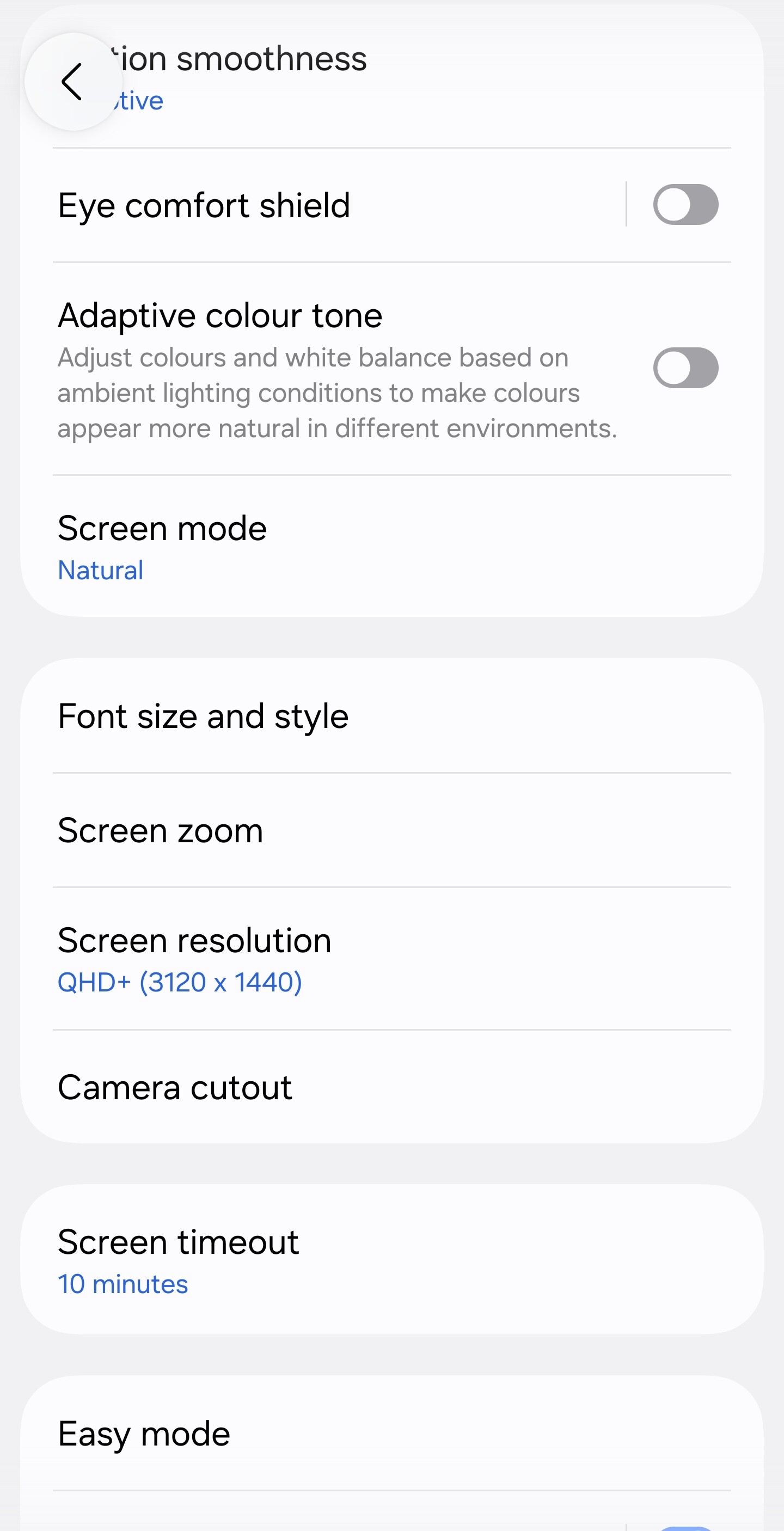
The Display screen is longer than one page, so the picture above starts partway down it, past the title. That is unavoidable: the row you need is below the fold, and a picture of the top of the screen would not contain it.
Use the rows as landmarks. If you can see Eye comfort shield, Adaptive color tone and Screen mode above you, Screen zoom is one or two rows below them.
What the slider does
Tap Screen zoom and you get one slider, with a - at the left end and a + at the right.
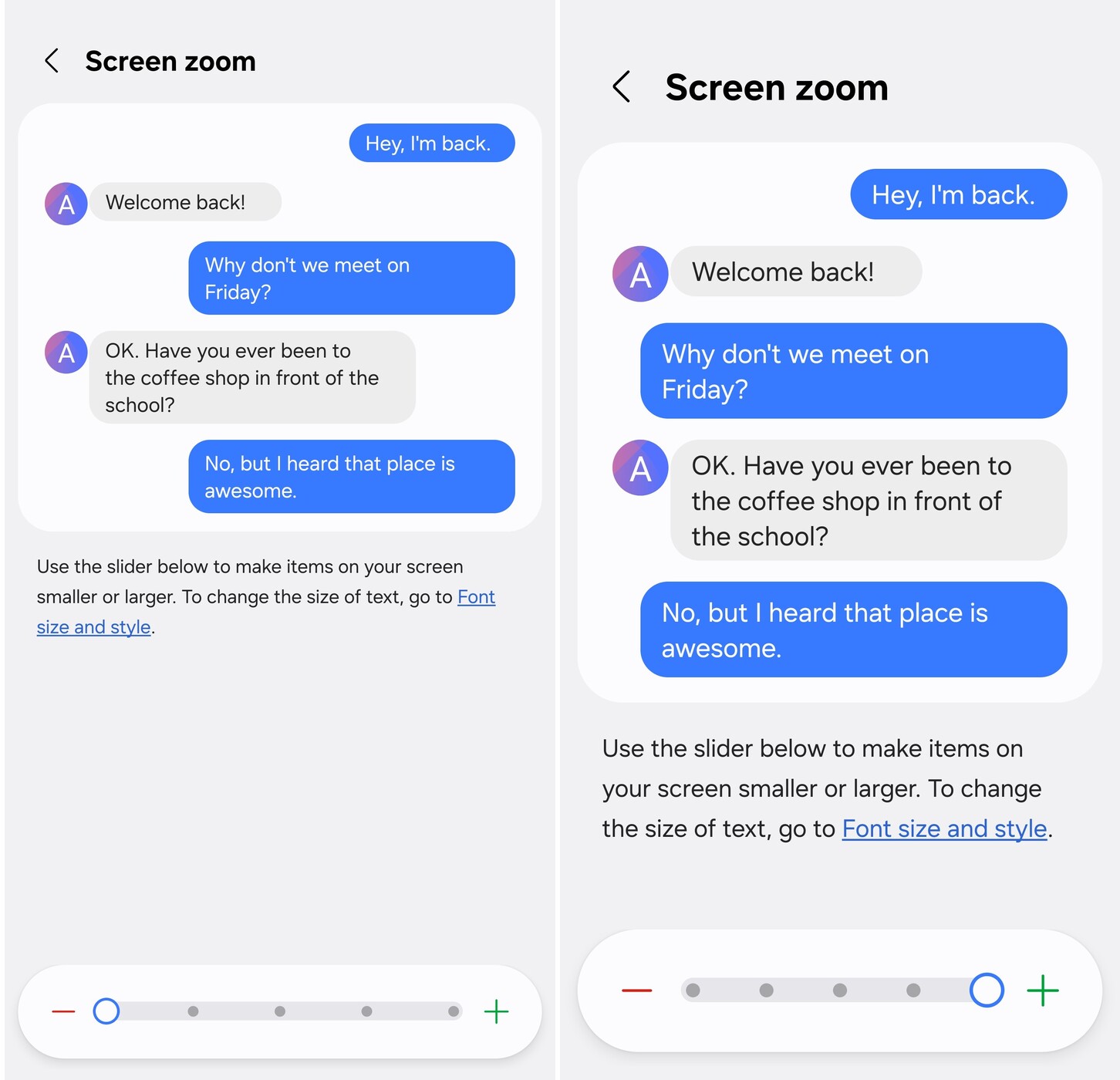
The conversation above the slider is a preview, not your own messages. It is there so you can watch the size change as you drag, before you settle on it. The two pictures above are the same screen at the two ends of the slider: on the left the dot sits against the -, and on the right it sits against the +. Nothing else changed between them.
What actually gets bigger
Everything in the interface, and more than you might expect. At the larger settings the home screen icons are wider, the keyboard keys are taller and further apart, and menu rows that used to need careful aim become easy targets. Notification text, settings labels, and the small gray captions under each row all grow with the rest.
The cost is room. A page that used to fit on one screen now takes one and a half, and a list shows fewer rows. You scroll more to see the same thing. That is the whole trade, and it is a good one if tapping has turned into guesswork.
Stop before the end of the slider
There are several steps between the two ends, and the largest is genuinely large. Most people do not want it.
Land one or two steps short of the maximum. That is usually enough to make everything comfortable without turning every screen into a scroll. Try it for a day at one setting, and move it on if you are still hunting for buttons.
Screen zoom on its own is a modest change. It works best alongside the font size setting, because the two do separate jobs: font size makes the words comfortable, screen zoom makes the targets comfortable.
What to do now
- Open Settings, then Display. Screen zoom is under Font size and style.
- Tap Screen zoom and drag the dot toward the +. Watch the preview as you go.
- Come out and try it. Open your messages and type a sentence, then open a menu you usually fumble.
- Give it a day at that setting. If you are still missing targets, go one step larger.
- If the words are hard to read rather than the buttons hard to hit, change the font size instead. Screen zoom will not fix that on its own.
If your phone is not a Samsung
The paths above were checked on a Samsung Galaxy S25 Ultra running Android 16 with One UI 8.5.
Samsung calls its version of Android One UI, and it moves settings around. On a Google Pixel, a Motorola or most other Android phones, the same idea is usually called Display size and it lives at Settings, then Accessibility, then Display size and text, next to the font size setting rather than under Display.
The setting exists on every Android phone. Only the route to it differs, which is why it is worth naming the brand when you look for instructions.
Want more guides like this as they are written? Sign up for the free tips list.