


A computer does not wear out the way a car does. There are no bearings left to grind down and no clutch to slip. What happens instead is that things get added to it - programs, updates, browser extensions, a second antivirus - and it goes on doing all of them, at every sign-in, for as long as it lives. “It’s getting old” is usually a description of that pile, not of the hardware.
The good news is that the pile is measurable, and Windows will show you exactly where the time goes if you know which three screens to open. None of them is hidden, none of them needs a program installed, and none of them can break anything by being looked at.
What does “slow” actually mean?
Let’s separate three complaints that get merged into one, because they have different causes and different cures.
Slow to be ready after switching on. You press the button, make a cup of tea, come back, and it is finally usable. That is startup, and it is about what is set to run before you have asked for anything.
Slow to open the thing you just clicked. Everything is fine, then you double-click something and wait eight seconds watching a spinner. That is usually memory or disk: the machine is busy with something else, or it is short of space to work in.
Fine on its own, hopeless with a browser open. Twelve tabs, a video call, and the whole machine turns to treacle. That is memory running out, and Windows shuffling things to the disk to make room.
Each of those leaves a different signature, and all three are visible in the same place.
The dashboard: Task Manager
Task Manager is built into Windows. Press Ctrl + Shift + Esc, or right-click the taskbar and choose it from the menu.
It is worth saying what this program is, because it has a reputation as something for technicians and it is not. It is the machine’s instrument panel: what is running, what it is using, and what it is waiting on. It cannot damage anything by being opened, and everything in this article is a read-only look.
The window has a list down the left side: Processes, Performance, App history, Startup apps, Users, Details, Services. Two of those matter here.
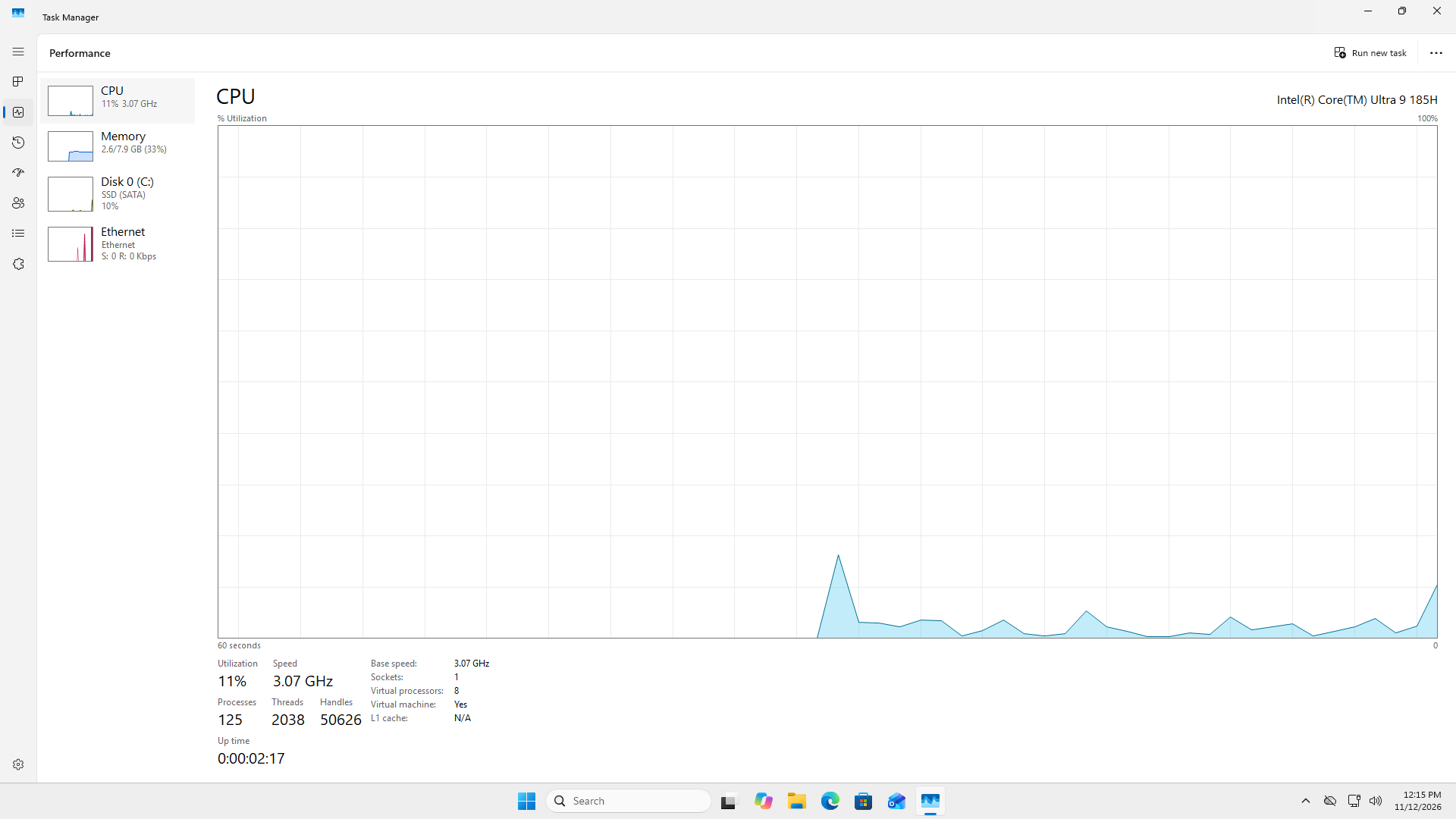
The Performance tab at rest. Four summaries on the left - CPU, Memory, Disk 0, Ethernet - and a graph for whichever one is selected.
Performance shows four things: the processor (CPU), the memory, the disk, and the network. Click each one and it gets a graph of the last sixty seconds.
Here is the same screen on a Windows 11 machine with nothing installed on it and nothing running:
- CPU 11%. The processor is doing what processors do: mostly idle with small spikes. Low with some movement is normal and healthy.
- Memory 2.6 GB of 7.9 GB, 33%. A third of the memory is in use with no programs open. That is Windows itself, its services, the antivirus, and the pieces of the interface.
- Disk 0, SSD, 10%. Momentary. It drops to nothing when nothing is happening.
The one to watch hardest is the disk. Memory and CPU that rise when you open things is the machine working. A disk sitting at or near 100% while the machine appears to be idle is a fault, not a sign of age, and it is the subject of the next piece in this series.
The startup list: what runs before you ask
Click Startup apps in that left-hand list.
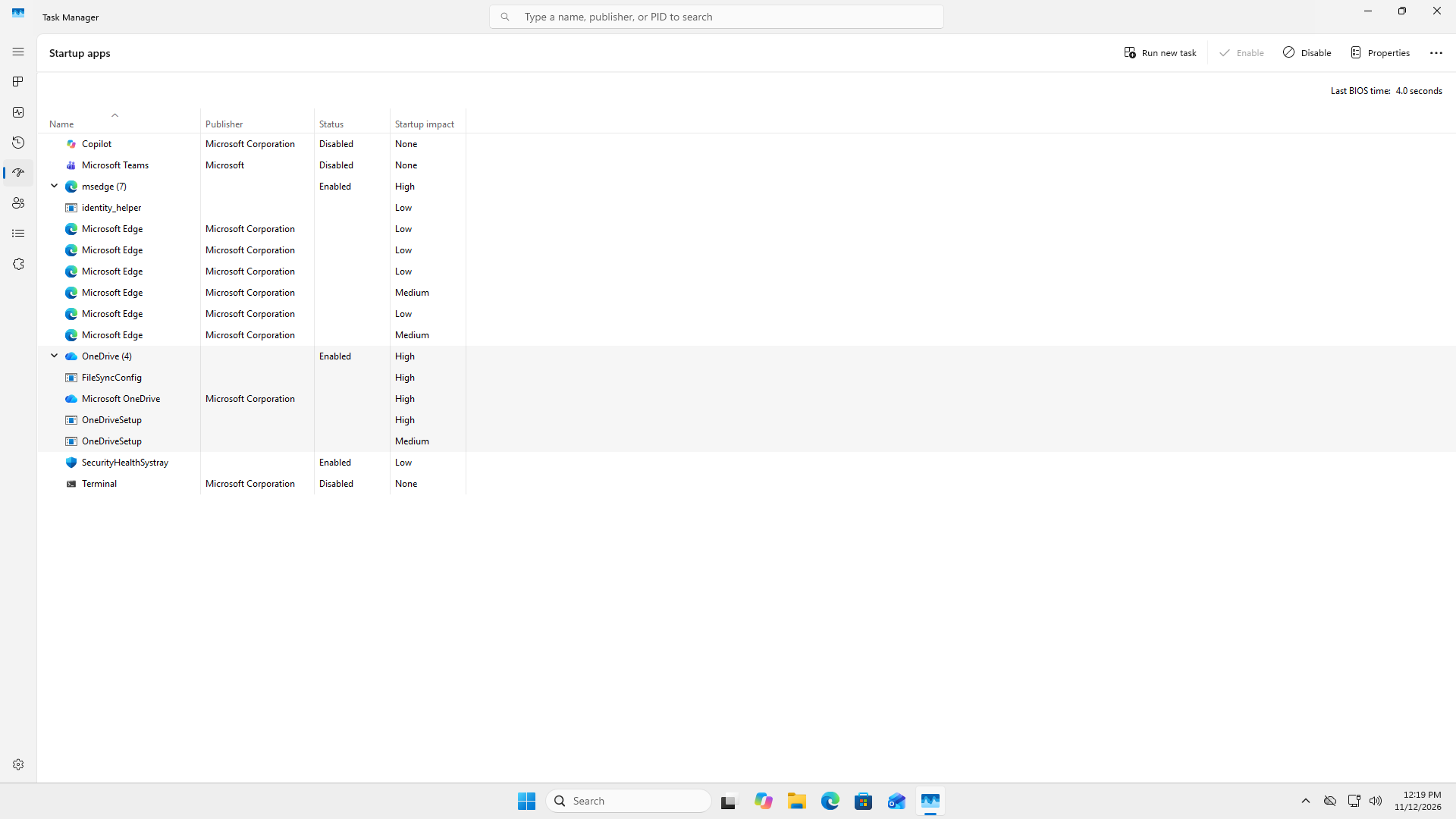
Fifteen entries on a machine with nothing installed. Eleven of them belong to two Microsoft programs.
This is a clean installation with no programs added. Fifteen things are set to start, and eleven of them belong to Microsoft Edge and OneDrive, in both cases several entries each rather than one.
The two columns worth reading:
- Status says whether the entry is Enabled or Disabled.
- Startup impact is Windows’ own estimate - Low, Medium or High - based on how long that entry took on this machine at the last sign-in.
That second column is the useful one, and it is easy to misread. High does not mean the program is badly written. It means that when this computer was last switched on, that entry cost it more time than the others did.
| What is running | Why it is there | What happens if you turn it off |
|---|---|---|
| Microsoft Edge (several entries) | Background processes that let Edge open instantly and keep updating itself | Edge still opens, slightly slower the first time. Updates continue when you use it. |
| OneDrive (several entries) | File sync, and the setup step that runs the file migration | Files stop syncing until OneDrive is opened again. Nothing is deleted. |
| SecurityHealthSystray | The shield icon in the notification area | The icon goes. Windows Security itself keeps running. |
| Copilot, Teams, Terminal | Optional extras | Nothing. They were mostly disabled already on a clean install. |
Turning one off is safe and reversible. It is a switch in Task Manager, it survives a reboot, and turning it back on is the same switch in the other direction. Nothing is uninstalled.
Where the disk space actually went
Open Settings, then System, then Storage.
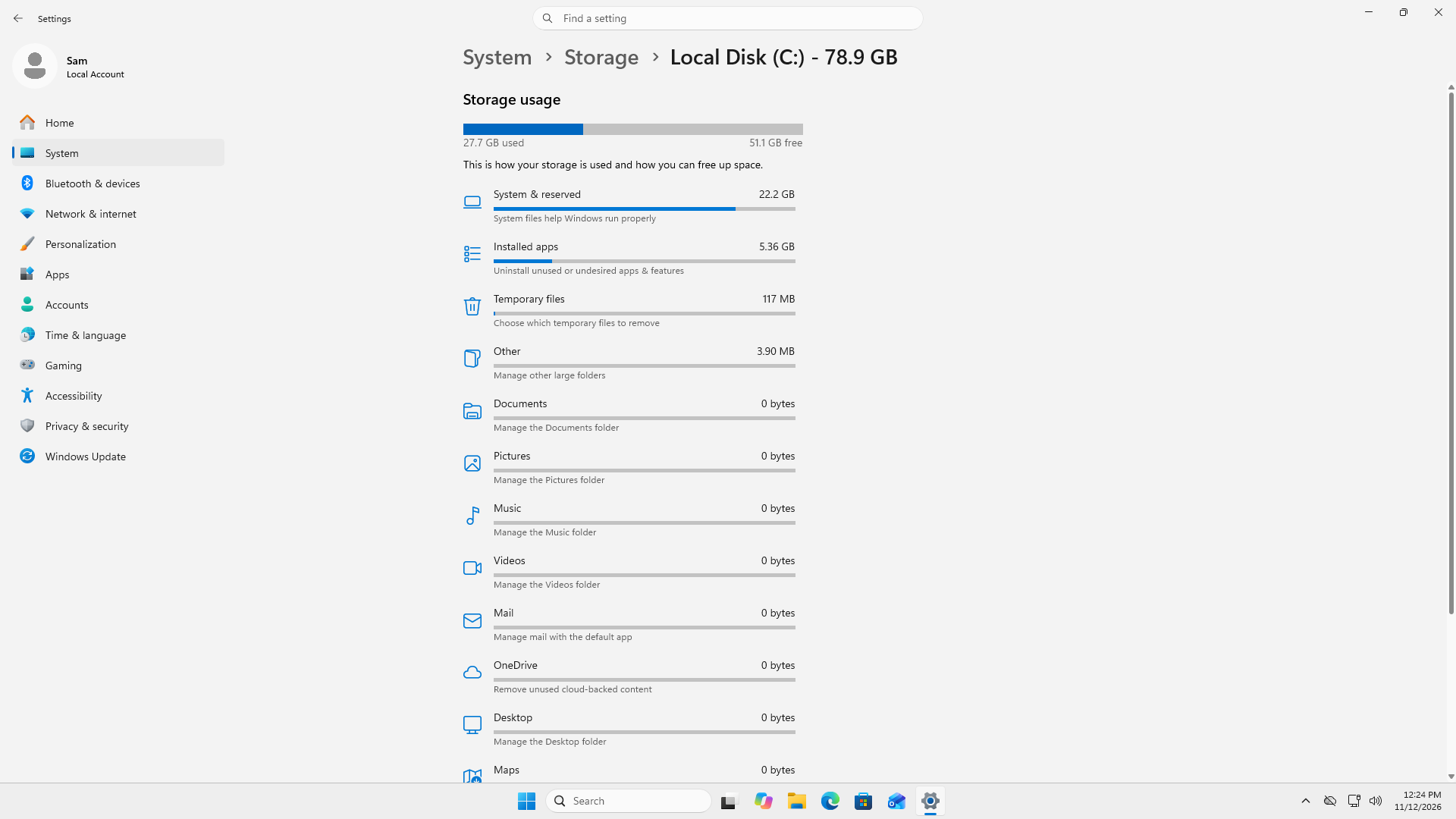
The same clean install. The drive is nearly a third full, and almost none of it is the owner’s.
On a drive of 78.9 GB, 27.7 GB is in use. The breakdown:
- System and reserved: 22.2 GB
- Installed apps: 5.36 GB
- Temporary files: 117 MB
- Other: 3.90 MB
- Documents, Pictures, Music, Videos, Mail, OneDrive, Desktop: 0 bytes each
Twenty-two gigabytes before anything was installed and before a single file was saved. That is Windows and the space it reserves for updates, the recovery environment and virtual memory.
Which means “my disk is full” is almost never about the documents folder. It is Windows, it is installed programs, and it is the things those programs leave behind. It is worth knowing before you spend an evening deleting photographs to recover two gigabytes.
What this does not say
Two limits, and the piece would be worth less without them.
Hardware does matter at the edges. A machine with 4 GB of memory will struggle with a browser, and a machine with a mechanical spinning disk will feel slow whatever Windows is doing. Those are real, and they are what part three is about.
Age is not the mechanism. A five-year-old machine with a clean startup list and an SSD feels quicker than a two-year-old one carrying six programs that all start at once. The date on the box is not the variable you can change. The list is.
What to do now
- Press Ctrl + Shift + Esc and click Performance. Click each of CPU, Memory and Disk in turn and watch each for a minute without opening anything.
- Note the three figures: processor percentage, memory used against total, and whether the disk is near zero or near 100.
- Click Startup apps and count how many entries read Enabled, and how many read High for impact.
- Open Settings, System, Storage and note the size of System and reserved against the size of Installed apps.
- Write all of it down, on paper or in a note, with the date. Then look again in a week. Numbers that move tell you something. Numbers that stay put tell you where to look.
The next piece in this series takes the fourth figure - a disk pinned at 100% - and shows what is actually causing it, and what to do about it. The one after that deals with the case where the disk is fine and the memory is the problem.
Sources
- Microsoft Support: System configuration tools in Windows - what Task Manager is for
- Microsoft Support: Configure Startup applications in Windows - what the startup list does, and that changing it is reversible
- Microsoft Support: Free up drive space in Windows - the storage categories and what they contain
- Microsoft Support: Manage drive space with Storage Sense - the automatic cleanup behind the same screen
- Microsoft Support: Tips to improve PC performance in Windows - Microsoft’s own advice, which starts with the same three measurements
Want more practical tech guides like this one? They land in your inbox every week. Sign up for the newsletter - no spam, unsubscribe anytime.