

3 Router Settings That Make Your Wi-Fi Faster
You changed the admin password. You gave your bands separate names. You set up a guest network. Good work. That took care of security and smart home headaches.
Now let’s make things faster.
These three settings won’t give you more internet speed than you’re paying for — no setting can do that. But they will make your internet feel faster. Websites will load quicker. Video calls won’t stutter when someone else starts streaming. And that weird problem where “the internet is connected but nothing loads” will stop happening.
192.168.1.1 or similar), same admin password you changed. If you need a refresher on how, see the start of The 5 Router Settings You Should Change Right Now.
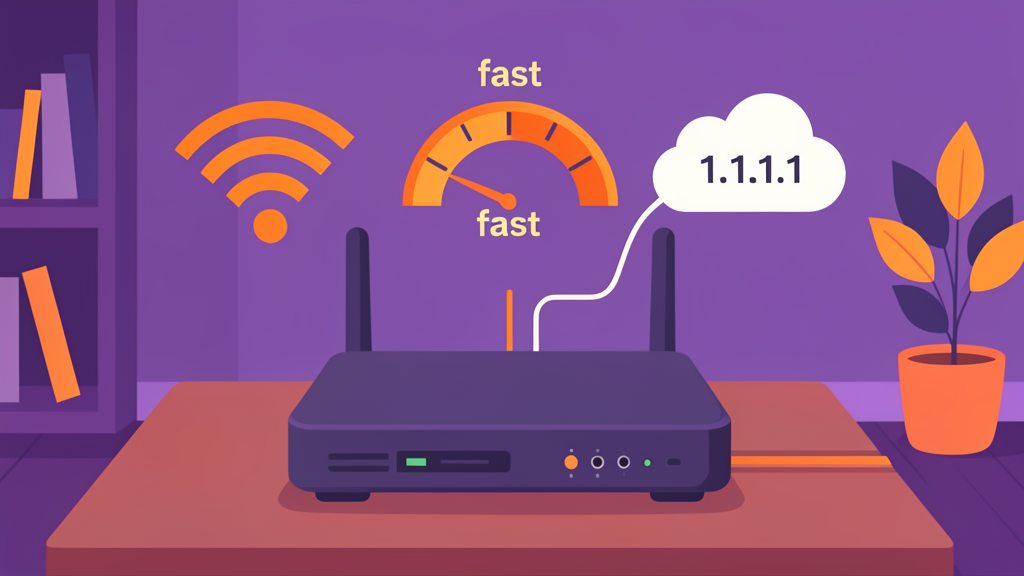
Setting 1: Change your DNS
DNS stands for Domain Name System. Ignore the name — it’s simpler than it sounds.
When you type a website name into your browser — say, google.com — your router needs to find the actual address of that website. It asks a DNS server: “hey, where’s google.com?” The DNS server looks it up and sends back a number like 142.250.80.46. Your browser then connects to that number.
Think of DNS as the phonebook of the internet. You know the person’s name. DNS finds their number.
The problem: Your internet provider gives you a DNS server by default. It works, but it’s usually slow and sometimes unreliable. When it’s slow, every website takes an extra second or two to load. When it goes down — which happens more than you’d think — you get that baffling situation where your Wi-Fi shows “connected” but no websites will load.
The fix: Switch to a faster, more reliable DNS server. The best free options are:
| Provider | Primary DNS | Secondary DNS | Why choose it |
|---|---|---|---|
| Cloudflare | 1.1.1.1 |
1.0.0.1 |
Fastest, privacy-focused, doesn’t log your data |
8.8.8.8 |
8.8.4.4 |
Very fast, but Google logs your queries | |
| Quad9 | 9.9.9.9 |
149.112.112.112 |
Security-focused, blocks known malicious sites |
I use Cloudflare on my own network. It’s fast, privacy-respecting, and the numbers are easy to remember (one-one-one-one). But any of these three is better than your ISP’s default.
What to do: In your router settings, look for “DNS” or “Internet Setup.” You’ll see fields for “Primary DNS” and “Secondary DNS.” They probably have numbers from your ISP in them right now. Replace them with:
- Primary:
1.1.1.1 - Secondary:
1.0.0.1
Save the settings. Your router might restart. From then on, every device on your network will use Cloudflare’s faster DNS. No apps to install. Nothing to configure on each device. One change, everything benefits.
Setting 2: Turn on QoS
QoS stands for Quality of Service. Another name that sounds complicated. Here’s what it actually does.
Without QoS, your router treats all internet traffic equally. When your teenager starts a 4K stream on the living room TV, it competes for bandwidth with your work video call. Your call stutters and drops. The TV keeps streaming perfectly.
That’s not fair. Your video call matters more than a show. QoS lets you tell the router: “this device is important, give it priority.”
What to do: Look for “QoS,” “Traffic Control,” or “Bandwidth Control” in your router settings. You’ll see a list of devices on your network. Prioritise them:
- High priority: Your work computer, especially during work hours. The device you use for video calls.
- Medium priority: Streaming devices, gaming consoles.
- Low priority: Smart home devices, file downloads, game updates that can wait.
Some routers have simple “high/medium/low” priority. Others let you set bandwidth limits. Both work. The simple version is fine.
When you’ll notice it: 8 PM on a weekday. The TV is streaming, the kids are on their phones, and you’re on a video call. Before QoS, your call would stutter. After QoS, your call gets what it needs and everything else shares the rest. It’s the difference between “the internet is unusable in the evening” and “I forgot we had this problem.”
Setting 3: Close the doors you don’t need open
This is two small settings that take thirty seconds each. They’re not about making things faster — they’re about removing things that could slow you down or cause problems.
Turn off remote management. This setting lets you log into your router from outside your home — from a coffee shop or a hotel. It sounds useful. In practice, almost nobody uses it, and leaving it open is an invitation for automated scanners to try cracking your router’s password. Unless you specifically need to manage your router from another country, turn it off.
Where to find it: Look for “Remote Management,” “Remote Access,” or “Administration from WAN.” Uncheck it. Save.
Turn off UPnP. UPnP (Universal Plug and Play) lets devices automatically open ports on your router. Game consoles and some apps use this to connect to each other. The problem is that malware on any device — even a smart plug — can use UPnP to open doors for attackers.
Where to find it: Look for “UPnP” in your router settings. It’s usually in the Advanced or Security section. Turn it off. If a game or app stops working, you can manually forward that specific port instead of leaving all ports open.
What to do now
- Log into your router settings
- Change your DNS to Cloudflare (1.1.1.1 and 1.0.0.1)
- Enable QoS and set your work computer to high priority
- Turn off remote management
- Turn off UPnP
- Test a few websites — notice they load faster
Read this next: What Home Networking Gear to Buy at Every Budget — the honest guide to what to spend, what to skip, and what actually makes a difference. (Coming soon.)
Want the full guide? We’re building a complete home networking book with detailed setup instructions, gear recommendations at every budget, and a complete security chapter that won’t put you to sleep. Sign up to hear when it’s ready.